External accounts are user accounts that you create for customers. This type of account makes it possible for you to grant permission to customers to login to via the internet and view selected reports for their company. External User Accounts are associated with a specific Customer Number. This association ensures that data for only that customer number will be included in report queries
Create External User accounts only if you intend to let your customers utilize DataTrak. Each company that accesses DataTrak needs a username and password. The username will identify the permissions for the user account. These permissions include the documents that the user can view as well as the databases, and company for which the user can view documents. The password ensures that only authorized users access DataTrak. Passwords should be confidential and known only to the user and the DataTrak administrator.
How Many User Accounts does a customer need? From a maintenance perspective the simplest answer to this question is "one." Each company will have one user account and multiple individuals from that company can use the account to access DataTrak reports at the same time. However, it is possible to use more complex methods.
Use the following procedure to create an external user account:
Login to DataTrak as "admin".
Click the Maintenance button on the menu. The system will display the maintenance screen.
Click the User Account Maintenance Folder in the Maintenance Library tree (located in the left browser pane.)
The right browser
pane displays the User Group Maintenance form. Fields on this form include
the following:
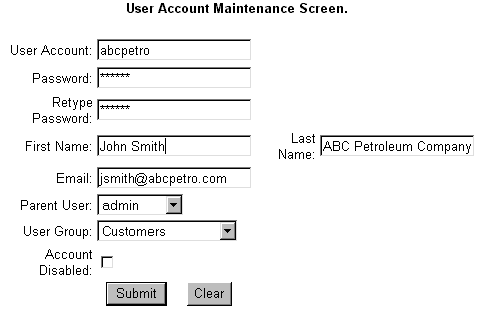
Username: Specify the username. User names can be up to eight alphanumeric characters in length and must be unique. One common method for creating user names is first initial last name. For example, "jsmith". For external users you could also use an abbreviated version of the company name. For example, the user Account for ABC Petroleum Company could be "abcpetro".
Password: Specify the password for the username. The password can be between 8 and 20 alphanumeric characters in length. When you type the password, the screen form masks each character with an "*".
Retype Password: Reenter the password to verify that you made no typographical errors.
First Name: Enter the user's first name, up to 30 alphanumeric characters. For external user accounts, you can use this field to hold the name of a contact within the company.
Last Name: Enter the user's last name, up to 30 alphanumeric characters. For external user accounts, you can use this field to hold the company name.
Email: Enter the user's e-mail address, up to 100 alphanumeric characters. The e-mail address is not currently utilized for DataTrak external users. However, it is still a good idea to include the e-mail address for possible future enhancements. Enter the e-mail address of the primary customer contact in this field.
Parent User: Select Admin as the Parent user.
User Group: Select the "Customers" user group.
Click the Submit button to save the user account information. When you click the Submit button, the list of user accounts in the maintenance library will refresh.
Click the newly created
account in the list to select it, and the user account information will
display in the maintenance form.
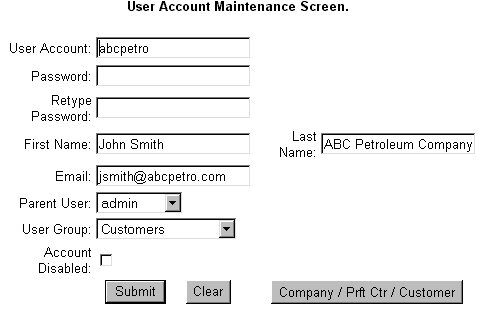
Click the Company/Profit
Center Maintenance button, and the system displays the next User Account
Maintenance form.
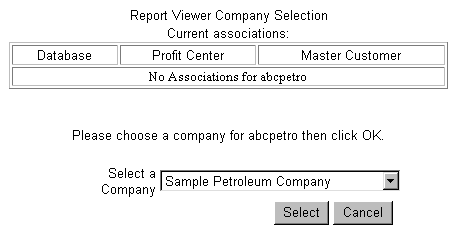
This form lets you specify the company databases to which a user has access. The top part of the form displays currently assigned company databases. To add a new company, select the company name from the dropdown list and then click the Select button. Note: Each user can be granted access to multiple databases.
After you select
a database, you will then need to specify the customer number with which
you want to associate the user.
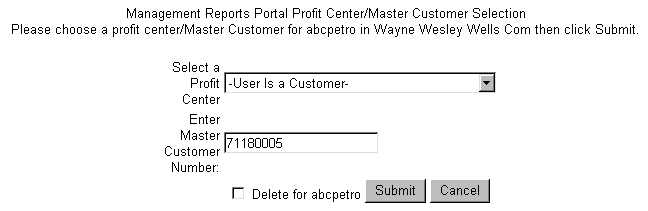
Verify that "User Is a Customer" is displayed in the "Select
a Profit Center" field. Enter the Master Customer number with which
you want to associate the username. The user account will be able to view
report information for only this customer number. When you click the Submit
button the system verifies that the account number is valid for the database.
After you assign the customer number, the system returns you to the database assignment form and lets you assign another database/customer number to the user account.
Note: If you assign an account to multiple databases, when the user logs in and runs a report, the system prompts to select the database.
Login to DataTrak as "admin".
Click the Maintenance button on the menu. The system will display the maintenance screen.
Click the User Account Maintenance folder in the Maintenance Library tree (located in the left browser pane) To expand it and display a list of existing user accounts.
In the Maintenance Library, click the name of the user account that you need to modify.
The right browser pane displays the record in the maintenance form. Make any changes to the record and click the Submit button to save the changes. (You can click the "Clear" button to reset the form to it's original state, provided you have not yet clicked the Submit button.)
You cannot delete a user account, but you can flag the account as inactive. Inactive account status disables a user from accessing DataTrak with the username and password. Use the following steps to disable an account:
Login to DataTrak as "admin".
Click the Maintenance button on the menu, and the system displays the maintenance screen.
Click the User Account Maintenance folder in the Maintenance Library tree (located in the left browser pane) To expand it and display a list of existing user accounts.
In the Maintenance Library, click the name of the user account that you need to modify.
The right browser pane displays the record in the maintenance form. Click the account disable checkbox and then click submit.