The purpose of schedules is to specify when a data alert should
occur. The schedule definition includes:
Once a schedule is created, it must be assigned to a user/alert
through Data Alert File Maintenance.
Only the DataTrak administrator has the authority to create schedules.
Individual users cannot define schedules; however, they can select from
any of the defined schedules when defining
their data alerts.
DataTrak installs with nine pre-defined schedules. These schedules are
designed to fit most data alert needs and cannot be changed or deleted.
However, the DataTrak administrator can create additional schedules that
may be modified or deleted as needed.
Note: a user-defined schedule can be deleted
only if it is not currently in use by any data alerts.
Login to DataTrak
as "admin".
Click the Maintenance
option on the menu. The browser displays the maintenance screen. The left
pane displays the DataTrak Maintenance Library tree and the right pane
displays common DataTrak Maintenance instructions.
Click the Schedule
Maintenance option in the Maintenance Library and the right browser pane
displays the database selection field.
Click the down arrow
to the right of the field to display a dropdown list of databases, then
click the database for which you need to create or modify a schedule.
After you select
the database, click the Submit button and the system displays the Schedule
selection field. To modify an existing schedule, click the arrow, then
select the schedule from the dropdown list. To create a new schedule,
select the New Schedule option on the list.
After you select
the schedule, click the Submit button and the right browser pane displays
the following Schedule Maintenance form:
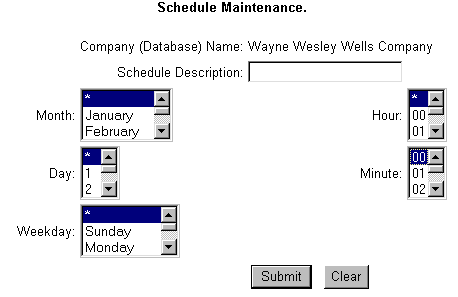
The controls on this
form lets you define the schedule. Each of the separate controls work
together to define the month, day, weekday, hour, and/or minute for the
schedule.
Enter a description
for the schedule. This description will be used to select a schedule for
a data alert through Data Alert
File Maintenance.
Select the month
for which you want to create the schedule. To include all months in the
schedule, select the wildcard (The * at the top of
each list is used as a wildcard. Select the wildcard when you want to
include everything on the list in your schedule. For example, when you
click the * in the month list, all months will be included in the schedule.).
To select a single month, click the month in the list to highlight it.
(Use the scrollbar on the left side of the list to scroll through the
list of months). You can also select multiple (You can select multiple
items in the list by pressing and holding the Ctrl key on the keyboard
and then clicking each item to select it. When an item is selected, it
is highlighted in blue. To de-select a highlighted item, press and hold
the Ctrl key and click the item. To highlight a range of items, click
the first item in the range, then scroll to the last item in the range,
press and hold the Shift key, and click the item. All items between the
first and last, inclusive, will be selected.)
months from the list.
Select the day for
the schedule. To include all days in the schedule, select the wildcard (The * at the top of
each list is used as a wildcard. Select the wildcard when you want to
include everything on the list in your schedule. For example, when you
click the * in the month list, all months will be included in the schedule.).
To select a single day, click the day in the list to highlight it. You
can also select multiple (You can select multiple items in the list
by pressing and holding the Ctrl key on the keyboard and then clicking
each item to select it. When an item is selected, it is highlighted in
blue. To de-select a highlighted item, press and hold the Ctrl key and
click the item. To highlight a range of items, click the first item in
the range, then scroll to the last item in the range, press and hold the
Shift key, and click the item. All items between the first and last, inclusive,
will be selected.)
days from the list.
Select the day of
the week for the schedule. To include all weekdays in the schedule, select
the wildcard (The * at the top of
each list is used as a wildcard. Select the wildcard when you want to
include everything on the list in your schedule. For example, when you
click the * in the month list, all months will be included in the schedule.).
To select a single weekday, click the day in the list to highlight it
(use the scrollbar on the left side of the list to scroll through the
list of weekdays). You can also select multiple (You
can select multiple items in the list by pressing and holding the Ctrl
key on the keyboard and then clicking each item to select it. When an
item is selected, it is highlighted in blue. To de-select a highlighted
item, press and hold the Ctrl key and click the item. To highlight a range
of items, click the first item in the range, then scroll to the last item
in the range, press and hold the Shift key, and click the item. All items
between the first and last, inclusive, will be selected.)
weekdays from the list.
Select the hour for
the schedule. To include all hours in the schedule, select the wildcard (The * at the top of
each list is used as a wildcard. Select the wildcard when you want to
include everything on the list in your schedule. For example, when you
click the * in the month list, all months will be included in the schedule.).
To select
a single hour, click it in the list to highlight it. You can also select multiple (You can select multiple items in the list
by pressing and holding the Ctrl key on the keyboard and then clicking
each item to select it. When an item is selected, it is highlighted in
blue. To de-select a highlighted item, press and hold the Ctrl key and
click the item. To highlight a range of items, click the first item in
the range, then scroll to the last item in the range, press and hold the
Shift key, and click the item. All items between the first and last, inclusive,
will be selected.)
hours from the list.
Select the minutes
for the schedule. The minutes work in conjunction with the hour to determine
the minutes after the hour when the alert should be sent. For example,
if you select "00" from the list, the alert will be sent at
the top of the identified hour(s). If you select "30" from the
list, the alert will be sent at thirty minutes after the hour, e.g. 6:30,
8:30, etc. If you select the wildcard, alerts will be sent every minute
for the hour. It's important to note that no alerts will be repeated;
once an alert has been sent, it will not be resent until there is a change
in the alert. For example, if a cash over/short alert is sent at 8:15,
the alert will not be sent again, regardless of how the schedule is defined.
Continuing with this example, if the over/short amount should change for
some reason at 8:45, a new alert will be sent. Note: You cannot use the
(*) wildcard for minutes when you define a schedule.
After you have made
all schedule selections, click the Submit button to save the schedule.