Document Group Maintenance
One important purpose of document groups is to provide a method
of organizing DataTrak documents. All documents are assigned to a document
group. The
Document Group Maintenance Program lets the DataTrak administrator create
new document groups or edit existing document groups. Additionally, custom document groups can
be created when you define a primary
desktop.
Note: DataTrak installs with
a pre-defined set of document groups and documents.
Use the following steps to create a new document group:
Login to DataTrak
as "admin".
Click the Maintenance
button on the DataTrak menu. The system will display the maintenance screen.
Click the Document
Group Maintenance folder in the Maintenance Library tree (located in the
left browser pane.)
The right browser
pane displays the Document Group Maintenance Form.
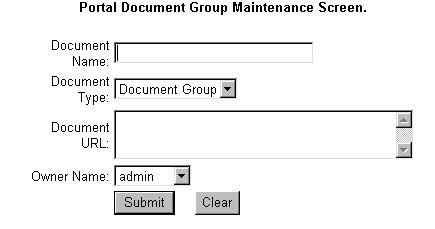
Enter the following information in the form.
Document Name: Enter
the name of the Document Group you want to create.
Document Type: Select
the Document Group from the dropdown list.
Document URL: Leave
the Document URL field empty.
Owner Name:
Select
the administrator login ID as the owner.
After you complete
the form, click the Submit button to create the new document group.
Login to DataTrak
as "admin".
Click the Maintenance
button on the DataTrak menu. The system will display the maintenance screen.
Click the Document
Group Maintenance folder in the Maintenance Library tree (located in the
left browser pane.) When you click the folder, the document tree expands
to show all existing document groups.
Click the Document
Group you want to change.
The right browser
pane displays the Document Group record in the maintenance form. Make
any changes to the record.
After making all
changes, click the Submit button to save the revised record.