DataTrak installs with default documents and document groups
already created. However, you do have the ability to create
document groups and edit existing document groups. The Assign Document
to Document Group program lets you specify to which document group, a
document should be assigned. Furthermore, you can assign the same document
to more than one document group. After you finish assigning documents
to document groups, you will then need to assign documents to user groups.
Complete the following steps to assign a document to a document
group.
Login to DataTrak
as "admin".
Click the Maintenance
button on the DataTrak menu. The system will display the maintenance screen.
Click Assign Document
to Document group in the Maintenance Library.
The right browser
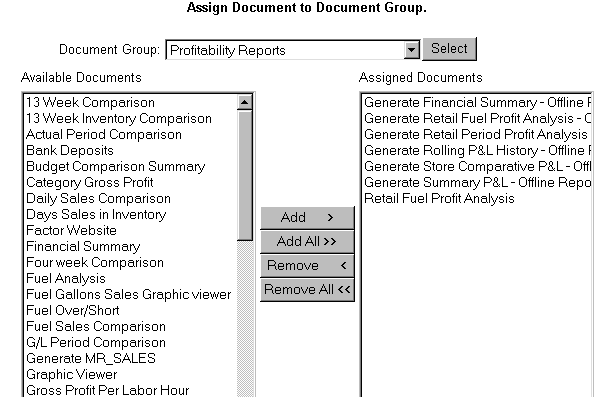
pane displays the Assign Document to Document Group maintenance form.
Select
the document group from the dropdown list and then click the  button.
The Available Documents
window displays all existing documents that are not currently assigned
to the displayed document group. The Assigned Documents window displays
all documents currently assigned to the document group.
To assign a document
to a document group, click the document in the Available Documents window
to highlight it. You can highlight multiple documents by pressing the
Ctrl key and clicking each document you want to add.
After you've highlighted
the documents, click the  button to assign the documents
to the document group. The system removes the documents from the Available
Documents list and displays them in the Assigned Documents list.
button to assign the documents
to the document group. The system removes the documents from the Available
Documents list and displays them in the Assigned Documents list.
After you've assigned
all documents, to the selected group click the  button to
save the changes. After you have submitted your changes to the database,
you can then select a different document group and make document assignments
to it.
button to
save the changes. After you have submitted your changes to the database,
you can then select a different document group and make document assignments
to it.
After you finish
assigning documents to document groups, you will then need to assign the
documents to user groups.
Complete the following steps to remove a document from a document
group. Any document you remove from the group is still available for assignment
to another group or to the original group.
Login to DataTrak
as "admin".
Click the Maintenance
button on the DataTrak menu. The system will display the maintenance screen.
Click Assign Document
to Document Group in the Maintenance Library.
The right browser
pane displays the Assign
Document to Document Group maintenance form.
Select
the document group from the dropdown list and then click the button.
The Available Documents
window displays all existing documents that are not currently assigned
to the displayed document group. The Assigned Documents window displays
all documents currently assigned to the document group.
To remove a document
assignment, click the document in the Assigned Documents window to highlight
it. You can highlight multiple documents by pressing the Ctrl key and
clicking each document that you want to remove from the group.
After you've highlighted
the documents, click the  button to remove the documents
from the document group. The system removes the documents from the Assigned
Documents list and displays them in the Available Documents list.
button to remove the documents
from the document group. The system removes the documents from the Assigned
Documents list and displays them in the Available Documents list.
After you finish
making changes to the selected group, click the button
to save the changes. After you have submitted your changes to the database,
you can then select and make changes to a different document group.