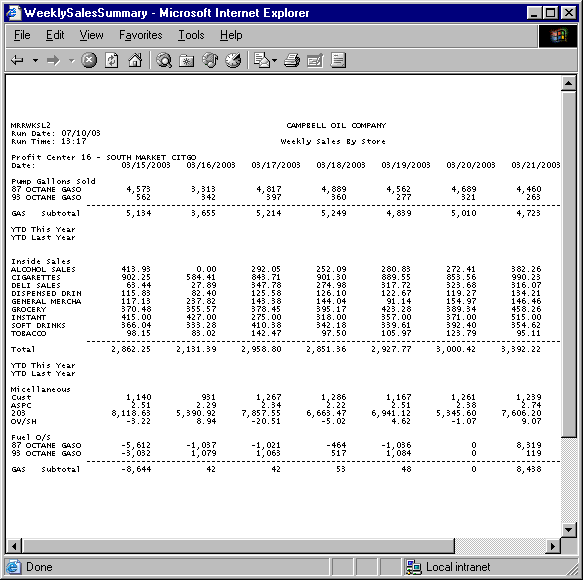
The Weekly Sales Summary report serves as a valuable tool for comparing one-week's worth of inside and outside sales of districts within a specified region or of stores within a specified district. At the detail level (stores on the lowest level of the profit center consolidation path), the report lists sales by day for a one-week period for the specified profit center.
The data presented on the report directly relates to the structure of the profit center consolidation path that you specified in System Parameter 16000. For example, if your profit center consolidation is based on a "Company-Wide > Region > District > Store" structure, then the report presents data as follows:
When reporting for a region, the report summarizes the sales of the districts within that region. Each column on the report identifies the districts within the region.
When reporting for a district, the report summarizes the sales of the profit centers within that district. Each column on the report identifies a specific store within the district.
When reporting for a single store, the report presents sales information for each day of the week. On the detail report, each report column identifies one day's sales.
The report also incorporates DataTrak's drill-down functionality so that you can easily navigate through the various report levels defined by the profit center consolidation path and the profit center to which your user account is assigned. For example, if your login is assigned to the company wide profit center, when you run the report, it will first present data for the company wide profit center; you can then click on a district profit center to view regions within that district. Subsequently, you can click on a district profit center to view the report for stores within the district. Likewise, if your user account is assigned to a district profit center, when you run the report you can view data for only that district and the stores within it.
Remember: Your user account must also be granted access to the Weekly Sales Summary Report in order to view it. Only the DataTrak Administrator can grant access to DataTrak documents.
To access the report, login to DataTrak and select the Weekly Sales Summary report in the Sales Reports document group.
The system will prompt you to select a database.
Click the down arrow next to the database dropdown list and select the database for which you want to run the report. Next, click the Select button, and DataTrak displays the following selection criteria screen:
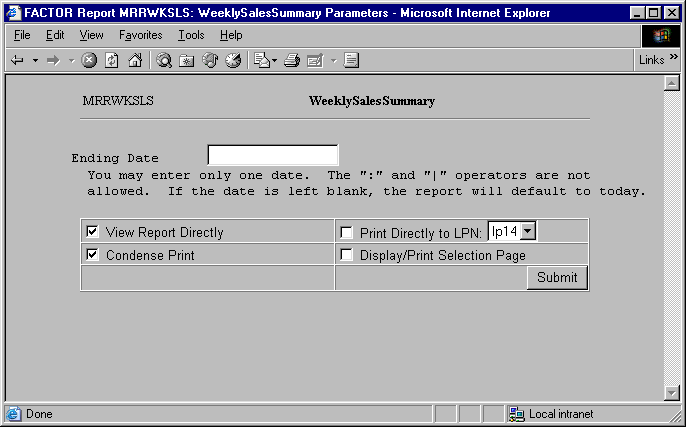
The report has only one selection criterion: Ending Date.
Enter the date that specifies the end of the week for which you want to report sales summary information. The report will include data for this date and the preceding six days.
You can specify how you want to view and/or print the report by choosing from the following selections:
· View Report Directly
· Condense Print
· Print Directly to LPN
· Display/Print Selection Page
After entering selection criteria and report print options, click the Submit button to run the report.
When generating the report, the system first attempts to retrieve the required data from the audited database tables (processed shift reports). If the data for a profit center is not available in the audited tables for a specific date, the program checks the unaudited tables (posted shift reports). If a day's data for a profit center is retrieved from the unaudited tables, all remaining report data for the profit center will also come from the unaudited tables. This situation can occur if you have entered one or more shift reports for the identified period but have not processed them at the time you run the Weekly Sales Summary.
Note: The Profit Center Master Record maintains the dates for the last posted and processed shift reports.
The report is cross-tabular in form. For summary reports, each column identifies a profit center, and each report row identifies the sales amount for a product or category. Note: The report can display a maximum of 13 profit centers. Review the following sample report.
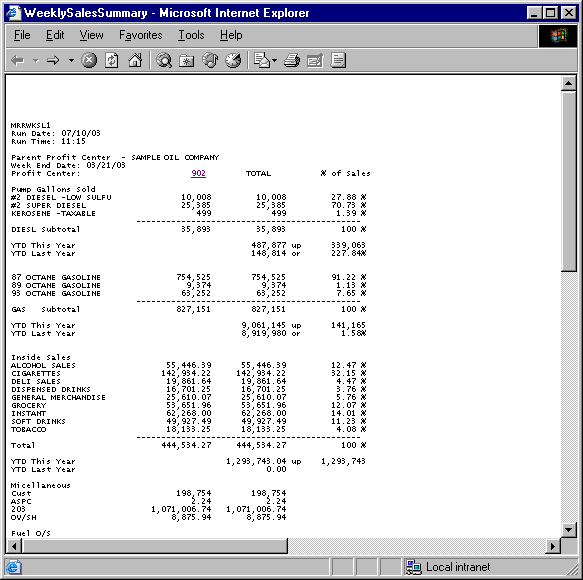
Remember: The top level profit center that you will see is the profit center that is assigned to your login ID. You will not be able to see any profit centers that exist higher in the profit center consolidation path. However, you can drill down to any child profit centers.
The report organizes data into the following sections:
Outside sales
Category sales
Customer count
Deposits
Cash over/short
Fuel over/short
Specific report entries are determined as follows:
The outside sales section of the report lists quantity (gallon) sales. Fuel products are grouped by fuel class. Individual products are then ordered by product code within the class. The report subtotals fuel products by class. The outside sales section of the report presents the following totals and subtotals:
Subtotal by fuel class and profit center
YTD this year
YTD last year
Total product for all profit centers
Percent of sales
Gallons increase or decrease over prior year
Percent increase or decrease over prior year
The inside sales section of the report lists the category sales dollars. Each row in this section of the report identifies the profit center's sales dollars for the sales category listed in the left column. The inside sales section of the report lists the following totals:
Total sales dollars by profit center
Total category sales dollars by product for all profit centers
YTD this year
YTD last year
Percent of sales
Sales dollars increase or decrease over prior year
Percent increase or decrease over prior year
This section of the report shows statistical information including the following:
Customer count
Average sale per customer (ASPC)
Bank deposit 1 amount
Bank deposit 2 amount
Cash over short
The report presents the following totals:
Fuel sales by store and by store/product
YTD fuel sales by store and by store/product
Category sales by store and by store/product
YTD category sales by store and by store/product
Fuel over/short by store and by store/product
Average sales per customer
The last column on the report lists the product's percent of total sales for the week for the parent profit center.
In the previous sample report, notice that the company wide profit center is displayed in hypertext. When you click the number, DataTrak displays the report for the districts.
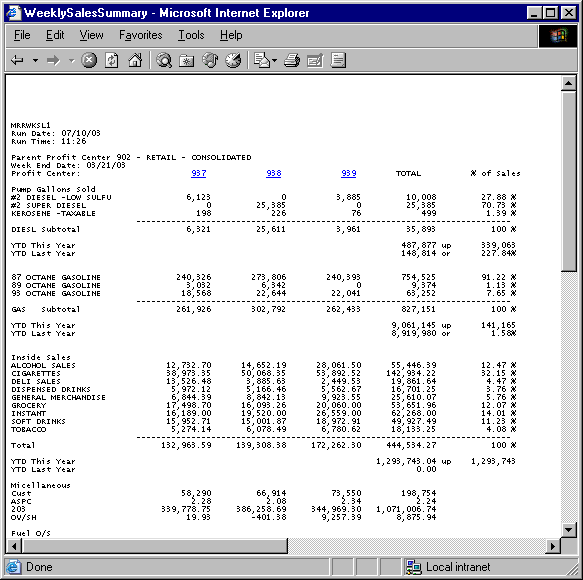
Notice that the number of each district on this sample report is displayed in hypertext. When you click one of the district Numbers, DataTrak displays the weekly sales summary for the stores within the selected district.
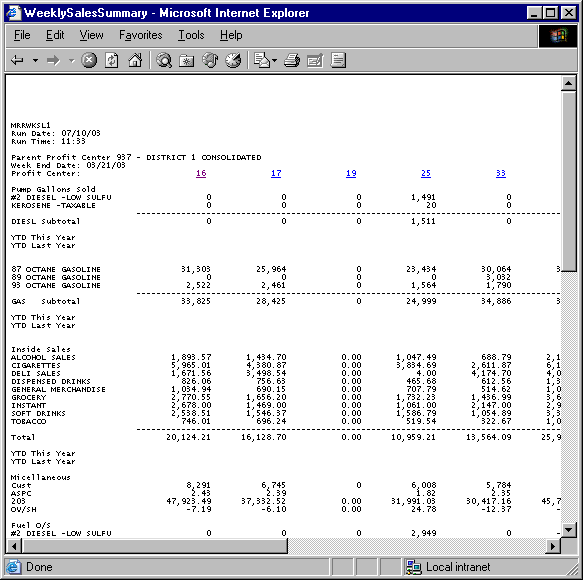
Notice that each store number is also displayed in hypertext. When you click a store number, DataTrak displays the detail report for the selected profit center.
When you click on a profit center link on the Weekly Sales Summary Report, if the link identifies a profit center on the lowest level of the consolidation path, the system displays the Weekly Sales By Store report. This detail report displays the same information as the Sales Summary Report. However, each report column displays sales values for a specific date for the selected profit center.