Weekly Performance Statistics reports allow users to compare the current week performance of a profit center with the performance of twelve prior weeks. This information can be used to help spot trends in areas vital to store operations.
Note: Please consider the following in regards to Weekly Performance Statistic reports:
If you use the Time N Attendance method for recording payroll, Factor cannot guarantee that the Regular and Overtime hours listed on the Weekly Performance Statistics report are accurate.
The Labor section – Total $ calculation will only be available if the Factor Payroll module is used.
The % Shrink to Sales calculation will only be available if inventory adjustments are made through StoreTrak and the user has activated the custom inventory update program. (See the Automatic Inventory Adjustment section for more information).
The Average $ Per Hour calculation will assume that the store is open 24 hours a day.
Reports are available for both parent and child profit centers.
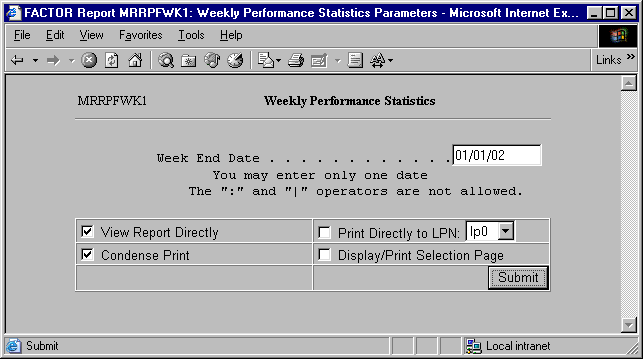
When you select Weekly Performance Statistics reports, the system displays the following report criteria screen:
The following selection criteria allow you to specify the information you want included on the report and the way the report is viewed.
Enter the ending date for the week you wish to compare. You must make an entry in this field and it must be in mm/dd/yy format. For example:
01/10/99
You may specify how you want to view and/or print the report by choosing from the following selections:
· View Report Directly
· Condense Print
· Print Directly to LPN
· Display/Print Selection Page
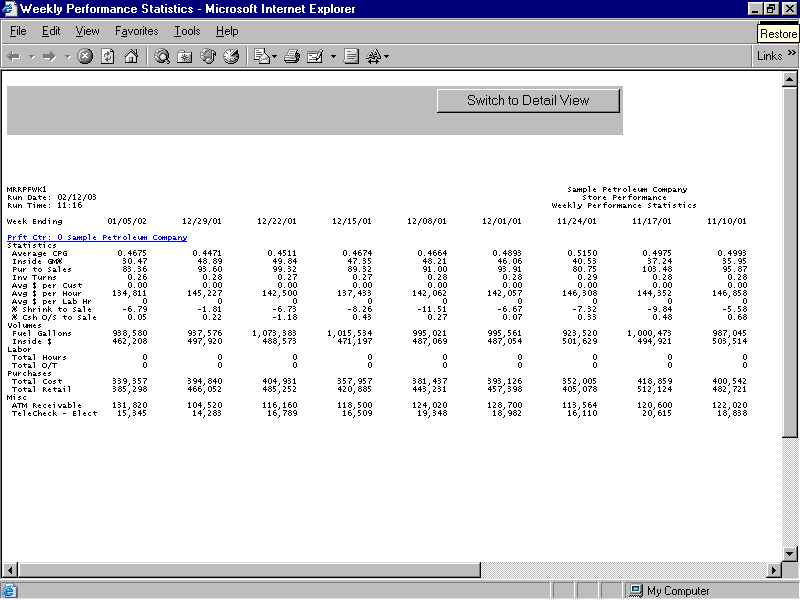
The following information is listed on Weekly Performance Statistics reports:
Week Ending Date
Profit Center
Statistics
Volumes
Labor
Purchases
Miscellaneous
Note: Table MR_SALES is used to retrieve sales and profit data. Purchase data is retrieved from RS_PURCLINE. Inventory data is retrieved from RS_CAT_DET. REGMISC is used to determine the number of customers and TOTALS is used to retrieve customer count information. Labor Hours are retrieved from the TIME_N_ATTEND and WFMS_DIST_HOURS tables. Miscellaneous and shrink values are retrieved from GL_JRNL_RS.
The report columns are as follows:
Week Ending Date
The Week Ending Date columns contain data pertaining to the specified week. The first Week Ending Date is the date entered through the Selection Criteria screen. Each subsequent Ending Date represents a prior week.
Note: Thirteen weeks are depicted on the Weekly Performance Statistics report. Prior weeks are chosen by subtracting one week from the selected Week Ending date, and then subtracting one week from each subsequent Week Ending Date.
If there are prior weeks where no data exists, the program will display either a zero (0) or N/A in the field.
The report displays the name and number of the profit center represented by the corresponding report data.
If a profit center has a child profit center, it appears as a hyperlink. Clicking on the hyperlink allows you to view summary information for child profit center(s).
Report data is organized into the following five sections:
Statistics
Volumes
Labor
Purchases
Miscellaneous
Statistics data is analyzed and presented in regards to the following information:
Average CPG
Inside GM %
Purchases To Sales
Inventory Turns
Average $ Per Customer
Average $ Per Hour
Average $ Per Labor Hour
% Shrink To Sales
% Cash Over/Short To Sales
Statistics – Average CPG
The Statistics – Average CPG column reports average cents-per-gallon margin values for fuel products during the specified week.
Average CPG (cents per gallon) column values are calculated by using the following formula:
Y / X
X = the cumulative sales values for fuel products sold during the specified week.
Y = the cumulative gross profit values for fuel products sold during the specified week. Note: Gross profit values are retrieved and calculated by the system. They are not displayed on Weekly Performance Statistics reports.
Values are rounded to four (4) places after the decimal.
Statistics – Inside GM %
The Statistics – Inside GM % column reports gross margin percentage values for merchandise products sold during the specified week.
Inside GM % values are calculated by using the following formula:
(Y / X ) * 100
X = the cumulative sales values for the merchandise products sold during the specified week.
Y = the cumulative gross profit values for the merchandise products sold during the specified week. Note: Gross profit values are retrieved and calculated by the system. They are not displayed on Weekly Performance Statistics reports.
Values rounded to two (2) places after the decimal.
Statistics – Purchases To Sales
The Statistics – Purchases to Sales column reports the percentage of purchases compared to sales for the specified week.
Purchases to Sales values are calculated by using the following formula:
(X / Y) * 100
X = the cumulative merchandise purchase cost values for the specified week. Note: Purchase values are calculated and retrieved by the system. They are not displayed on Weekly Performance Statistics reports.
Y = the cumulative merchandise sales values for the specified week.
Values are rounded to two (2) places after the decimal.
Statistics – Inventory Turns
The Statistics – Inventory Turns column reports the inventory turnover ratio.
Inventory Turns values are calculated by using the following formula:
X / Y
X = the cumulative merchandise sales for the specified week.
Y = the corresponding beginning inventory value for the specified week. Note: Beginning inventory values are retrieved and calculated by the system. They are not displayed on Weekly Performance Statistic reports.
Inventory Turns ratios are calculated on a monthly basis only. Values are rounded to two (2) places after the decimal.
Statistics – Average $ Per Customer
The Statistics – Average $ per Customer column reports the average dollars spent per customer during the specified week.
Average $ per Customer values are calculated by using the following formula:
X / Y
X = the cumulative merchandise sales for the specified week.
Y = the number of customer records retrieved by the system for the specified week.
Values are rounded to two (2) places after the decimal.
Statistics – Average $ Per Hour
The Statistics – Average $ per Hour column reports the average dollar amount received per hour for the specified week.
Average $ per Hour values are calculated by using the following formula:
(X / 24N)
X = the cumulative merchandise sales dollars for the specified week.
N = the number of days in the specified week.
Note: The Average $ per Hour formula assumes that the store is open 24 hours a day.
Values are rounded to two (2) places after the decimal.
Statistics – Average $ Per Labor Hour
The Statistics – Average $ per Labor Hour column reports the average dollar amount received per labor hour for the specified week.
Average $ per Labor Hour values are calculated by using the following formula:
X / Y
X = the cumulative merchandise sales for the specified week.
Y = the sum of all regular and overtime hours for the specified week.
Values are rounded to the nearest whole number.
Statistics – % Shrink to Sales
The Statistics – % Shrink to Sales column reports the percentage of shrink (change in cost) compared to sales for the specified week.
X / Y * 100
X = the shrink value for the specified week. Note: Shrink values are retrieved and calculated by the system. They are not displayed on Weekly Performance Statistic reports.
Y = the cumulative merchandise sales for the specified week.
Values are rounded to two (2) places after the decimal.
Statistics – % Cash Over/Short to Sales
The Statistics – % Cash O/S to Sales column reports the percentage of cash over/short values compared to sales for the specified week.
% Cash O/S to Sales values are calculated by using the following formula:
(X \ Y) * 100
X = the over/short value for the specified week. Note: Over/Short values are retrieved and calculated by the system. They are not displayed on Weekly Performance Statistic reports.
Y = the cumulative merchandise sales for the specified period.
Values are rounded to two (2) places after the decimal.
Volumes data is analyzed and presented in regards to the following information:
Fuel Gallons
Inside $
Volumes – Fuel Gallons
The Volumes – Fuel Gallons column reports fuel gallon volume values for the specified week. Values are rounded to the nearest whole number.
Volumes – Inside $
The Volumes – Inside $ column reports merchandise sales volume values for the specified week. Values are rounded to the nearest whole number.
Labor data is analyzed and presented in regards to the following information:
Total Hours
Total $
Total Overtime
Labor – Total Hours
The Labor – Total Hours column reports the sum of all regular and overtime hours for the specified week. Values are rounded to the nearest whole number.
Labor – Total $
The Labor – Total $ column reports the sum of all regular and overtime pay for the specified week. Values are rounded to the nearest whole number.
Labor – Total Overtime
The Labor – Total O/T column reports the sum of all overtime hours. Values are rounded to the nearest whole number.
Purchase data is analyzed and presented in regards to the following information:
Total Cost
Total Retail
Purchases – Total Cost
The Purchases – Total cost column reports the sum of all purchase costs for the specified week. Values are rounded to the nearest whole number.
Purchases – Total Retail
The Purchases – Total Retail column reports the sum of all retail purchases for the specified week. Values are rounded to the nearest whole number.
The Miscellaneous section of the report details the store’s miscellaneous revenue values for the specified weeks. The report lists a row for each Miscellaneous Revenue category available (if any). Values are rounded to the nearest whole number.
If a profit center has child profit centers, you may click on the parent profit center’s hyperlink on the Weekly Performance Statistics report to view report information for its child profit centers.
The Weekly Performance Statistics child report is based on the same selection criteria you entered for the parent profit center.
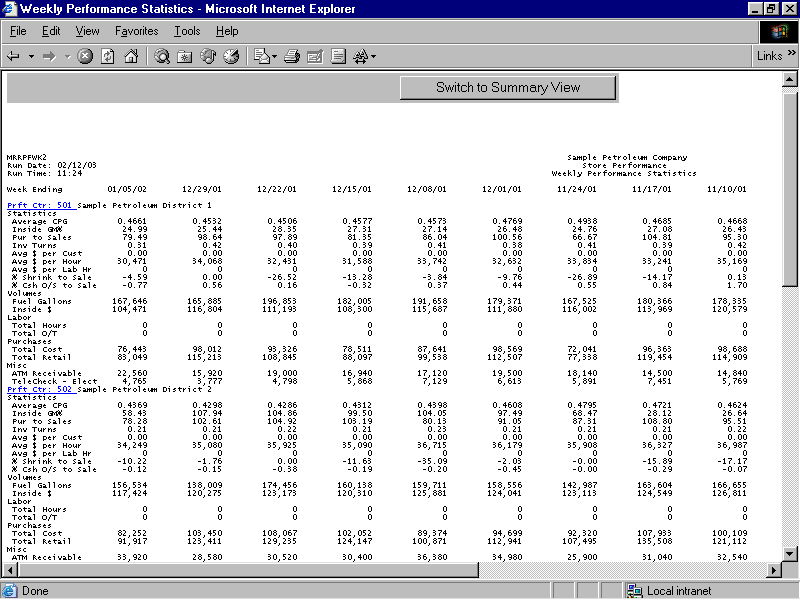
Information for child profit centers is calculated in the same manner as it is for parent profit centers. See the Weekly Performance Statistics Summary report section for more information.
You may notice a slight rounding difference between totals on detail and summary reports. Click here to see why.