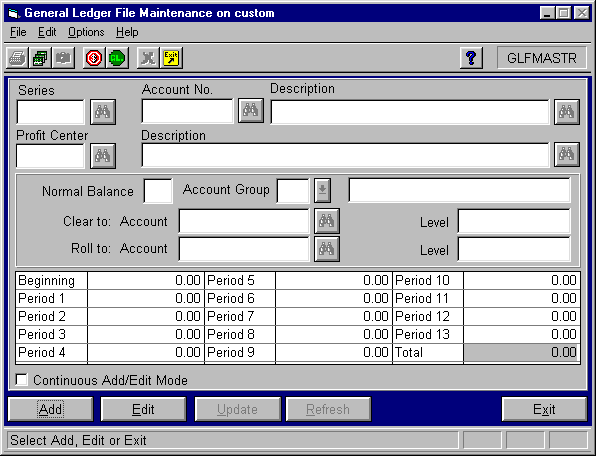
Use the ExecuTrak General Ledger Master File Maintenance program to add inventory, sales, and cost accounts to the charts of accounts for your dummy profit centers. This addition is necessary so that you can add inventory master records for the dummy profit centers.
You will need to add each inventory, sales, and cost account for each fuel product that you sell at your retail profit centers. This means that you will need to add several GL accounts for each profit center. Consider the following example:
Example: You sell 5 fuel products at your retail profit centers. All products use the same inventory account but separate sales and cost accounts. This equates to 5 cost accounts, 5 sales accounts, and 1 inventory account (11 accounts total) that you need to add to the dummy profit center's chart of accounts.
Take a moment to list all fuel products that you sell at your retail profit centers. Next to each product, list the GL account numbers for the product's inventory, sales, and cost accounts. You could also print the Wholesale and Inventory Product Codes/Profit Center Report. When you run the report enter criteria to select only products assigned to your fuel product classes.
To access the program, login to ExecuTrak for Windows and select General Ledger >> File Maintenance >> G/L Master File Maintenance. The system displays the following screen:
Click the Add button to add the account. Controls on this form include the following:
Specify the Series for which you need to add or edit information. Enter the series code or use the search procedure to display a list of series that match the criteria in the edit box. If you enter no criteria, the list displays all existing series.
To add a new period, click the (Add G/L Period) button on the toolbar or right click the Series edit box and select Add G/L Series from the popup menu. You can also select Add G/L Series from the Options menu.
Press this button to activate the search procedure and display a list of series that match the criteria in the Series edit box. If you enter no criteria, the list displays all existing series.
Enter the general ledger account number or use the search procedure to display a list of existing accounts that match the criteria in the Account Number and/or Description edit boxes. The list displays only accounts for the current series. When adding a new account, account numbers must be positive integers between 100 and 2,147,483,647.
Press this button to activate the search procedure and display a list of general ledger accounts that match the criteria in the Account Number and/or Description edit boxes. If you leave the edit boxes empty and press this button, the list displays all general ledger accounts for the current series. This button orders the list by account number.
Enter the number of the profit center to which you need to assign this general ledger account. You can use the search procedure to display a list of profit centers that match the criteria in the Profit Center and/or Description edit boxes. In Add mode, this list displays only profit centers not currently assigned to the given accounting series and number.
Press this button to activate the search procedure and display a list of profit centers that match the criteria in the Profit Center and/or Description edit boxes. If you enter no criteria in the edit boxes and press this button, the list displays all profit centers. In Add mode, this list displays only profit centers not currently assigned to the given accounting series and number. The system orders the list by profit center number.
When you enter a valid number in the profit center edit box, the system automatically displays the profit center description. If you don't remember a profit center number, you can use this field to locate the profit center by description. Enter the profit center description or use the search procedure to display a list of profit centers that match the criteria in the Profit Center and/or Description edit boxes. This list displays only profit centers for the given accounting series and number. In Add mode, the list displays all profit centers not currently assigned to the given accounting series and number.
Note: Since a profit center description can contain both upper and lowercase letters, be certain that you enter the correct case in your criteria.
Press this button to activate the search procedure and display a list of profit centers that match the criteria in the Profit Center Number and/or Description edit boxes. The list displays only profit centers for the given accounting series and number. This button orders the list alphabetically by profit center description.
Specify if this general ledger account should have a debit balance or a credit balance. Enter "D" for a debit balance or "C" for a credit balance. You can change the normal balance only from the company wide profit center. Changing this value for the company wide profit center will change the normal balance on all profit centers assigned this account.
In Add mode, enter up to 40 alphanumeric characters to describe the general ledger account. In Edit mode, the system automatically displays the description. You can change the description only for the company wide profit center. When you change the description for the company wide profit center, the system automatically changes the account description for all other G/L records that have the same account and series numbers as the current record.
This combo box displays the accounting group for the general ledger account. You can change the accounting group for only the company wide profit center. When you change the group for the company wide profit center, the system will change all of the G/L records that have the same account and series numbers as the current record.
This field displays the Accounting Group Description. Accounting groups are predefined in ExecuTrak, and you cannot change the group description.
Enter the general ledger account to which you will clear the current general ledger account. An entry in this field is optional. You can use the search procedure to display a list of accounts that match the criteria you enter. The list displays only accounts available for the given accounting series.
Press this button to activate the search procedure and display a list of general ledger accounts that match the criteria in the Clear to Account edit box. The list orders accounts by number and displays only accounts available for the given accounting series.
If you specify no Clear to Account, then you do not need to make an entry in this field. If you do specify a Clear to Account then the "Clear to Level" must be greater than zero. If the "Clear to Account" edit box is empty, the system sets the "Clear to Level " value equal to zero.
Enter the general ledger account to which you will roll the current general ledger account. An entry in this field is optional. You can use the search procedure to display a list of accounts that match the criteria you enter. The list displays only accounts available for the given accounting series.
Press this button to activate the search procedure and display a list of general ledger accounts that match the criteria in the Roll to Account edit box. The list orders accounts by number and displays only accounts available for the given accounting series.
If you specify no Roll to Account, then you do not need to make an entry in this field. If you do specify a Roll to Account then the "Roll to Level" must be greater than zero. If the "Roll to Account" edit box is empty, then the system sets the level to zero.
Initially, period values will be set to zero. Entering or changing a period value amount changes the period total balance. Positive numbers, negative numbers, and zeros are valid period values.