The Expanded PMA report provides you with summary levels of Purchase Movement Data for the corporate level, profit center summary level, and a profit center detail level. The following default summary data is available:
Cost
Current Retail
Percent of Month Retail
Gross Profit Percent
Percent of Gross Total Profit
Gross Profit Difference
Compared to same period of previous year
Compared to same annual period of previous year
The following detail level data for each profit center is available:
Merchandise Inventory
Merchandise Sales
Inventory Turnover
Gasoline Sales
Total Sales
Total Customer Count
Average Merchandise Sales
You can select specific accounts and/or groups of accounts to include on the report by accessing the ExecuTrak for Windows PMA Additional GL Account Group File Maintenance screen.
This functionality allows you to include non-category type GL Accounts on the PMA report. Examples include:
Supplies
Lottery
Vacuum Sales
Cash over/short
Shrinkage
Bad Merchandise/Store Use
Additionally, this screen allows you to specify c-store categories and alternate categories to exclude from the PMA report.
The screen is a two tabbed form:
Additional GL Groups: Create groups of General Ledger Accounts to include.
Exclude Category Accounts: Specify Categories to exclude
To access the PMA Additional GL Account Group File Maintenance screen, click Advanced C-Store >> File Maintenance >> PMA setup.
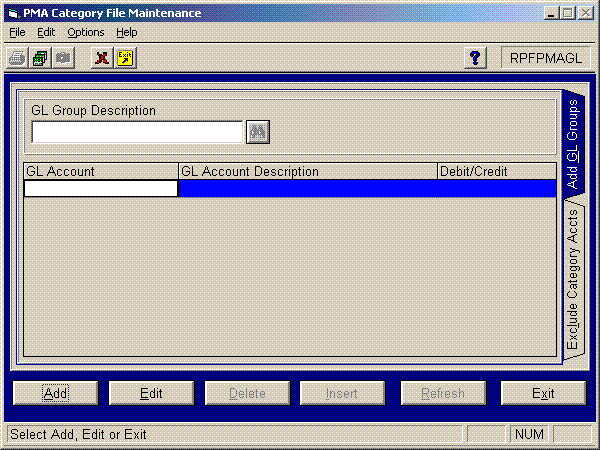
The Add GL Groups tab lets you create a GL Group and then assign General Ledger accounts to the group. You can create multiple account groups and assign different accounts to each group. These accounts will be listed on the PMA report. The Additional GL Groups tab appears as follows:
Click the Add button to create a new GL group or click the Edit button to change an existing GL group.
Controls on this screen include the following:
In Add mode, this field lets you create a new GL account group description. In Edit mode, this field lets you select a GL group for which you need to make changes such as adding or removing GL accounts from the group. The description you enter in this field appears on the report with the sum of the values from the accounts you specify in the grid.
This grid lets you specify the general ledger accounts to include in this group. The sum of all accounts will print on the report for the account group. Columns in this grid include:
GL Account: Enter the general ledger account number or select the account from the dropdown list.
GL Description: When you enter a general ledger account number in the previous column, this column automatically displays the account description.
Debit/Credit: This column displays D if the account has a normal debit balance or C if the account has a normal credit balance.
Click the Add button.
Click the GL Group Description button.
Enter the GL account number to assign to this GL Group. The system automatically displays the account description and the debit/credit flag.
Repeat steps 2 and 3 for each account to assign to this group.
Click the Insert button.
To edit a category:
Click the Edit button.
Enter GL group to change or click the search button and select the group from the dropdown list.
Change the GL accounts as necessary. You can add a new GL account to the grid or delete a GL account currently assigned to the group.
To delete an account from the group, click the Line in the grid to select it and then click the Delete button.
To add an account to the group. Click the bottom row in the grid and enter the account.
Click the Update button to save the changes.
The Exclude Category Tab lets you specify any categories or alternate categories that you do not want to print on the report. The controls on this screen include the following:
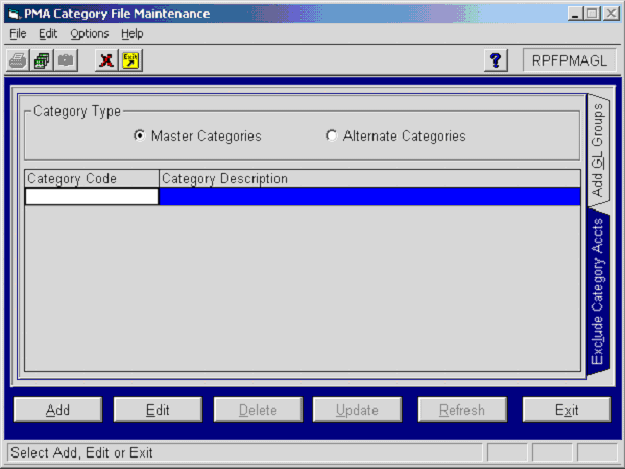
These buttons let you specify the types of categories that will display in the grid. Click the Master Categories button to specify master categories to exclude or click the Alternate Categories button to specify alternate categories to exclude.
This grid lets you specify the categories to exclude from the PMA report. If you selected the Master Categories button, then this grid lets you enter Master Categories. If you selected the Alternate Category button, then this grid lets you specify Alternate Categories.
Columns in this grid include:
Category Code: Enter the category code to exclude or click the search button and select the category from the list.
Category Description: When you specify a category code in the first field, this field automatically displays the category description.
To add a category:
Click the Add button.
Enter a description.
Specify whether or not to include this in the retail sales percentage calculation.
Select a GL account(s) to associate with the category.
Enter credit or debit.
Click the Insert button.
To edit a category:
Click the Edit button.
Select a category.
Enter the new data.
Click the Insert button.
The Purchase Movement Analysis report is available through the DataTrak Performance Reports document group. When you select the report link, the system displays the following selection criteria screen:
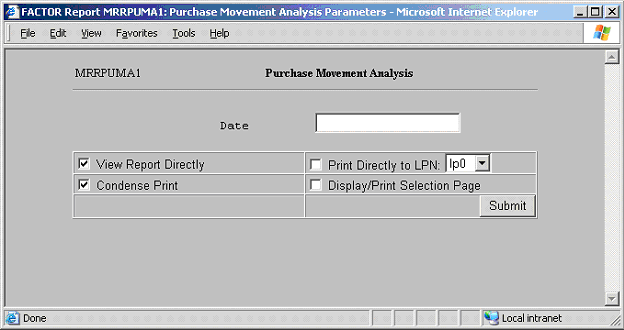
Enter a date to identify the GL period for the report. For example, if you enter 04/17/06, then the report will include data for April 2006. If you leave this field empty, then the system uses the current period.
You can specify how you want to view and/or print the report by choosing from the following selections:
View Report Directly
Condense Print
Print Directly to LPN
Display/Print Selection Page
Once the criteria are entered, click Submit. Review the following sample report.
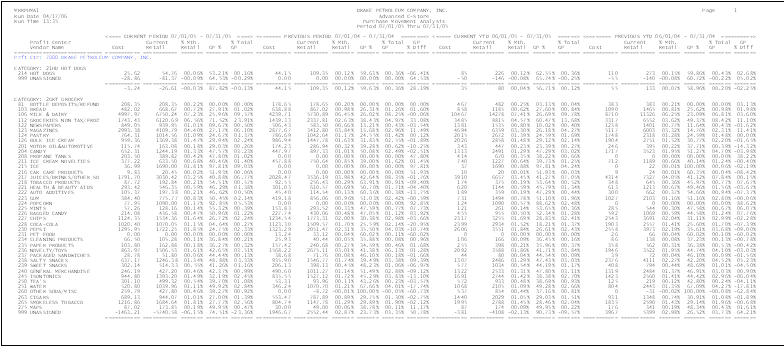
The column headings are as follows:
This column displays the Profit Center Number and Name. If data is available at another level, i.e., a child profit center, then profit center number and name is displayed as a hypertext link.
This column displays the vendor for which the corresponding row information pertains.
The columns beneath the Current Period heading report data for the GL period identified by the date you entered on the criteria screen.
The columns beneath the Previous Period heading report data for the same period in the prior year.
The columns beneath the Current Year to Date heading report data from the start of the fiscal year to the current date.
The columns beneath the Previous Year to Date heading report data from the start of the fiscal year to the current date in the prior year.
Each of the report sections includes the following data:
Cost: Category Purchases.
Current Retail: Category Retail Sales.
Percent Month: Retail Category Percent of monthly retail sales.
GP Percent: Category gross profit percentage.
Percent Total GP: Categorys percent of the total gross profit.
Gross Profit Percent Difference: This column displays the difference between the current category period or year to date gross profit percent and the previous year period or previous year to date gross profit percent.
The sum of the cost of all merchandise categories.
The sum of the retail sales for all merchandise categories.
Merchandise Sales divided by Merchandise Inventory.
The sum of all gasoline sales with a detail for total gallons sold and total gallons.
The sum of all merchandise sales and gasoline sales.
The number of sales.
The total number of sales divided by the Total Customer Count.
If a profit center has child profit centers, you may click on the parent profit centers hyperlink on the Purchase Movement Analysis report to view report information for its child profit centers.
The Purchase Movement Analysis child report is based on the same selection criteria you entered for the parent profit center. Purchase information for each child profit center is displayed for the same weeks depicted on the parent report.
The following information is listed on Purchase Movement Analysis child reports:
Vendor Name
This Period Date
Last Year Date
YTD
Cost
Retail
GP%
% Total
Profit Center
Store Total
Final Total