Price Book Exception reports allow users to view all items scanned at their assigned store(s) for a selected period where the scan price did not equal the price book retail price and the operator did not override the price. This information can be used to spot missing price changes as well as timing problems in price book transmission.
Reports are available for assigned profit centers.
Note: This report is unavailable for Gilbarco registers.
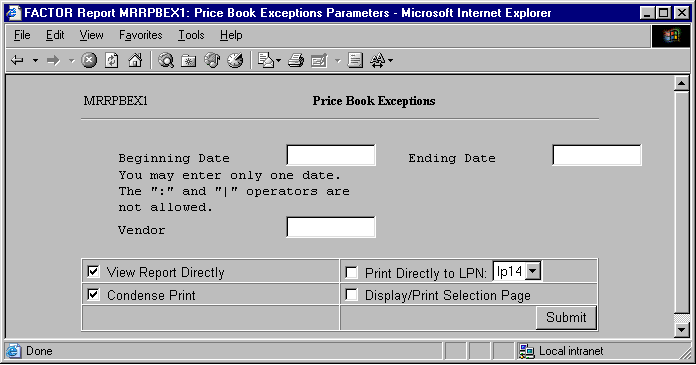
When you select Price Book Exceptions reports, the system displays the report selection criteria screen:
The following selection criteria allow you to specify the period to report and the way the report is viewed.
Enter the vendor number, or use the search procedure to view a drop-down list of vendors that match the criteria you enter in the Vendor Number box, if any. You may then select the vendor by clicking the appropriate listing. Note: If you do not enter a vendor number, the system will display price book exception information for all vendors.
Enter the starting date for the period you wish to view. You must make an entry in this field and it must be in mm/dd/yy format. For example:
01/10/99
Enter the ending date for the period you wish to view. You must make an entry in this field and the date must be greater than the Beginning Date. Use the mm/dd/yy format. For example:
01/10/99
Note: If the Ending Date is not greater than the Beginning Date, the system will display an error message.
You may specify how you want to view and/or print the report by choosing from the following selections:
· View Report Directly
· Condense Print
· Print Directly to LPN
· Display/Print Selection Page
Note: Price Book Exception reports display information by store where the selling price does not equal the price book retail price and the operator did not override the price.
The following information is listed on Price Book Exceptions reports:
Vendor Name
Item Code
Item Description
Store
Selling Price
Book Price
Difference
Note: The IQ_SCAN_DATA_HIST table is used to retrieve price book data. Table P_VENDOR is used to retrieve vendor name and table RS_B_ITEM is used to retrieve item information.
The report contains the following columns:
Vendor
The Vendor column displays the name of the vendor for which the corresponding price book exception data pertains. If there is more than one vendor involved, the report prints “Multiple Vendors”.
Item Code
The Item Code column displays the numerical item code for an item where the scan price and the price book retail price did not match. The report lists items from the Beginning Date entered as report criteria through the Ending Date entered.
Item Description
This column displays the description of the corresponding item code number.
Store
Price Book Exception reports display the name of the profit center at which the item was scanned.
Selling Price
The Selling Price column displays the selling price of the item scanned at the store. Values are rounded to two (2) places after the decimal.
Book Price
The Book Price column displays the price book retail price for the item scanned at the store. Values are rounded to two (2) places after the decimal.
Difference
Values in this column display the difference between the price book retail price and the scanning price of the item. Difference values are calculated by using the following formula:
X – Y
X = the value from the Book Price column for the item.
Y = the corresponding value from the Selling Price column for the item.
Values are rounded to two (2) places after the decimal.
You may notice a slight rounding difference between totals on detail and summary reports. Click here to see why.