Percent of Sales By Store reports allow users to compare the percent of total sales for each inside sales category during a selected period with sales data from the same period one year prior.
Reports are available in summary format for parent and child profit centers.
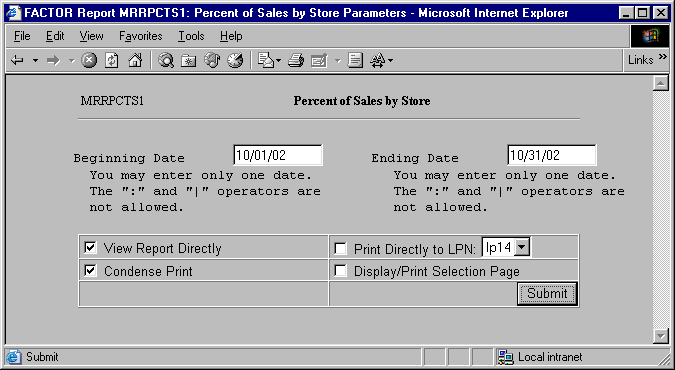
When you select Percent of Sales by Store reports, the system displays the following report criteria screen:
The following selection criteria allow you to specify the dates you want to compare on the report and the way the report is viewed.
Enter the starting date for the period you wish to compare with the previous year. You must make an entry in this field and it must be in mm/dd/yy format. For example:
01/10/99
Enter the ending date for the period you wish to compare with the previous year. You must make an entry in this field and it must be in mm/dd/yy format. For example:
01/10/99
Note: If the Ending Date is not greater than the Beginning Date, or if the Beginning and Ending dates are not within the same GL period, the system will display an error message.
You may specify how you want to view and/or print the report by choosing from the following selections:
· View Report Directly
· Condense Print
· Print Directly to LPN
· Display/Print Selection Page
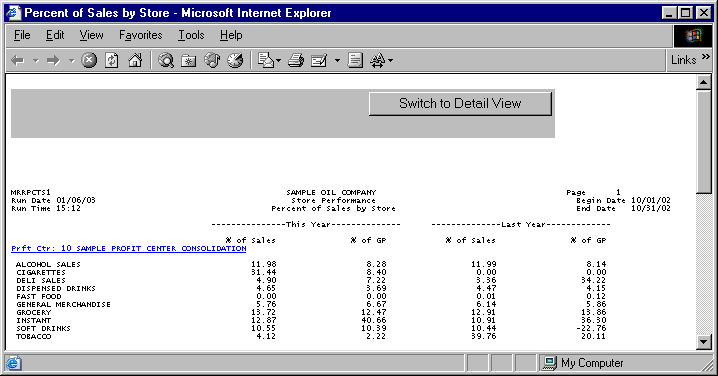
The following information is listed on Percent of Sales by Store reports:
This Year
Last Year
% of Sales
% of GP
Profit Center
Category
Note: Table MR_SALES is used to retrieve sales data.
The Column Headings are as follows:
This Year
The This Year column displays the current year’s value for the corresponding category during the specified period. Unless otherwise noted, these values are calculated by summing all current year category values for the period.
Last Year
The Last Year column displays the value for the corresponding category during the specified period one year prior. Unless otherwise noted, these values are calculated by summing all prior year category values for the period.
The report columns are as follows:
% Of Sales
The Percent of Sales column is calculated by using the following formula:
X / Y
X = the sum of sales values for each category listed.
Y = the sum of all sales values for the selected period.
% Of GP
The % of GP column is calculated by using the following formula:
X / Y
X = the total gross profit for each category listed. Note: Gross profit values are calculated by the system and are not displayed on Percent of Sales by Store reports.
Y = the sum of all gross profit values for the selected period.
The following sections are listed on the report:
Profit Center
The report displays the name and number of the profit center represented by the corresponding report data.
If a profit center has a child profit center, it appears as a hyperlink. Clicking on the hyperlink allows you to view Percent of Sales by Store reports for child profit centers.
Merchandise Category
The Merchandise Category rows describe the merchandise sales being reported for the corresponding period at the profit center.
If a profit center has child profit centers, you may click on the parent profit center’s hyperlink on the Percent of Sales By Store report to view report information for its child profit centers.
The Percent of Sales by Store child report is based on the same selection criteria you entered for the parent profit center.
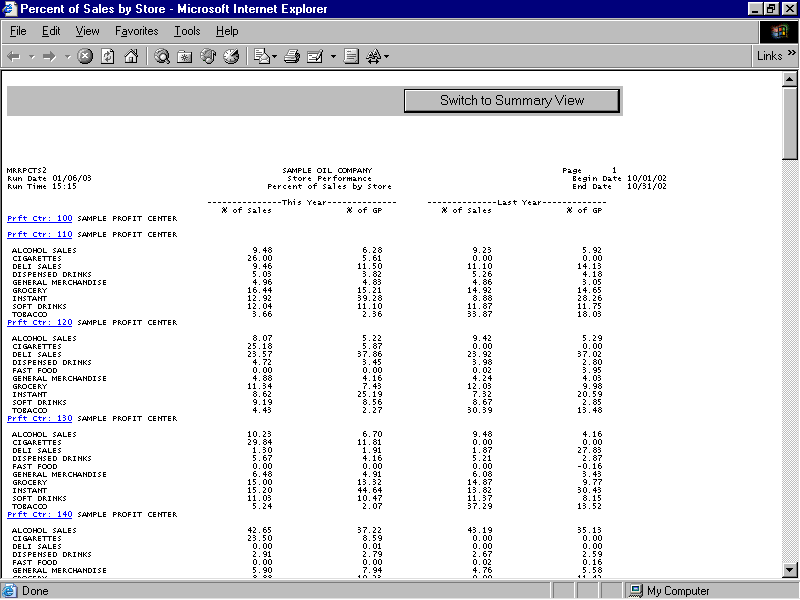
Information for child profit centers is calculated in the same manner as it is for parent profit centers. See the Percent of Sales by Store report section for more information.
You may notice a slight rounding difference between totals on detail and summary reports. Click here to see why.