Monthly History Comparison reports allow users to compare sales data for a selected month with sales data from twelve prior months. This information can be used to compare sales activity between stores and the activity between months over the past year.
Reports are available in summary and detailed formats for both parent and child profit centers.
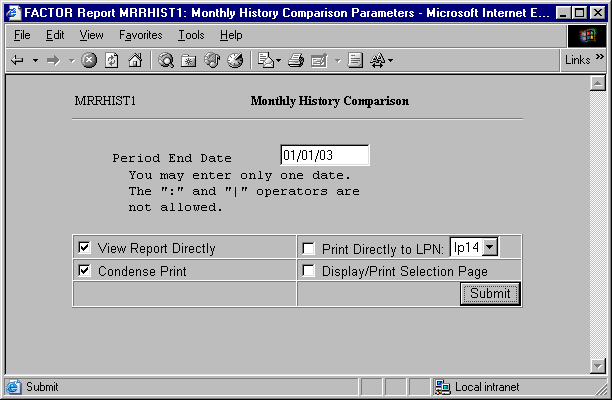
When you select Monthly History Comparison reports, the system displays the following report criteria screen:
The following selection criteria allow you to specify the month you want to compare on the report and the way the report is viewed.
Enter the ending date for the period you wish to compare. You must make an entry in this field and it must be in mm/dd/yy format. For example:
01/10/99
Note: You do not need to know the exact Period End Date. The system will find the actual End date for any date you enter.
You may specify how you want to view and/or print the report by choosing from the following selections:
· View Report Directly
· Condense Print
· Print Directly to LPN
· Display/Print Selection Page
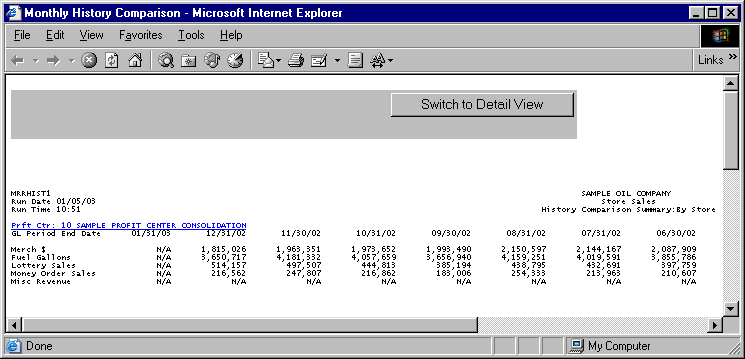
Note: Monthly History Comparison reports print in landscape format.
The following information is listed on Monthly History Comparison Summary reports:
Profit Center
GL Period End Date
Merch $
Fuel Gallons
Lottery Sales
Money order Sales
Misc. Revenue
Note: Tables MR_SALES and GL_JRNL_RS are used to retrieve sales data. Tables MOSALES and LOTTMISC are used to retrieve sales data for StoreTrak users only. The GL_RPT_PORT_GL table is used to define any additional GL accounts that represent sales to be listed on the report.
The report displays the name and number of the profit center represented by the corresponding report data.
If a profit center has a child profit center, it appears as a hyperlink. Clicking on the hyperlink allows you to view summary report information for each child profit center.
The column headings for the report are as follows:
GL Period End Date
The GL Period End Date columns contain sales data pertaining to each specified period.
Thirteen months are shown on the Monthly History Comparison report. The first month is the month selected as report criteria. Prior months are chosen by subtracting one month from the selected Period Ending date and then subtracting one month from each subsequent Period Ending Date.
The report sections are as follows:
Merchandise $
The Merch $ section reports merchandise sales values for each Period Ending Date column. Column values are rounded to the nearest whole dollar.
Fuel Gallons
The Fuel Gallons section reports fuel gallon values for each Period Ending Date column. Column values are rounded to the nearest whole gallon.
Lottery Sales
The Lottery Sales section is only available to StoreTrak users. This section reports Lottery ticket sales. Values are rounded to the nearest whole dollar. If there are no values to report, the section label will not print on the report.
Money Order Sales
The Money Order Sales section is only available to StoreTrak users. This section reports money order sales. Values are rounded to the nearest whole dollar. If there are no values to report, the section label will not print on the report.
Miscellaneous Revenue
The Misc. Revenue section reports miscellaneous revenue. Values are rounded to the nearest whole dollar. If there are no miscellaneous revenue values to report, the section label will not print on the report.
The following formula is used to calculate the Misc. Revenue column values:
(Y – X)
X = the sum of debit values retrieved from the GL_JRNL_RS table for each period. Note: Debit values are retrieved and calculated by the system. They are not displayed on Monthly History Comparison reports.
Y = the sum of credit values retrieved from the GL_JRNL_RS table for each period. Note: Credit values are retrieved and calculated by the system. They are not displayed on Monthly History Comparison reports.
The Monthly History Comparison Detail report displays more detailed information for each section listed on the Monthly History Comparison Summary report.
Note: Values on the detail report are rounded to the nearest whole number. Because each value is rounded, Total values may differ from the Summary report. The Summary report should be considered more accurate.
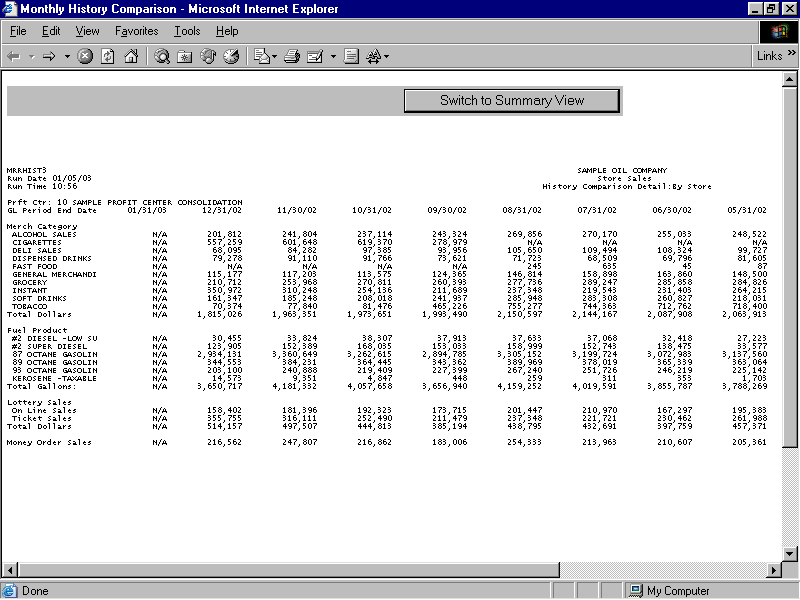
The following information is listed on Monthly History Comparison Detail reports:
Profit Center
GL Period End Date
Merch $
Fuel Products
Lottery Sales
Money order Sales
Misc. Revenue
Totals
The report displays the name and number of the profit center represented by the corresponding report data.
If a profit center has a child profit center, it appears as a hyperlink. Clicking on the hyperlink allows you to view summary report information for each child profit center.
The report columns are as follows:
GL Period End Date
The GL Period End Date columns contain sales data pertaining to each specified period.
Thirteen months are shown on the Monthly History Comparison report. The first month is the month selected as report criteria. Prior months are chosen by subtracting one month from the selected Period Ending date and then subtracting one month from each subsequent Period Ending Date.
The report sections are as follows:
Merchandise $
The Merch $ section details the Merchandise $ section displayed on the Summary report. Underneath this heading, a listing for each individual category pertaining to merchandise sales is displayed.
Fuel Gallons
The Fuel Gallons section details the Fuel Gallons section of the Summary report. Underneath this heading, a listing for each individual category pertaining to Fuel Gallons is displayed.
Lottery Sales
The Lottery Sales section is only available to StoreTrak users. This section details the Lottery Sales section of the Summary report. Underneath this heading are two sub-categories: Online Sales and Ticket Sales. If there are no values to report, the Lottery Sales section label will not print on the report.
Money Order Sales
The Money Order Sales section is only available to StoreTrak users. This section details the Money Order Sales section of the Summary report. If there are no values to report, the Money Order Sales label will not print on the report.
Miscellaneous Revenue
The Misc. Revenue section details the Misc. Revenue section of the Summary report. Underneath this heading, a listing for each individual category pertaining to miscellaneous revenue is displayed. If there are no miscellaneous revenue values to report, the section label will not print on the report.
The following formula is used to calculate the Misc. Revenue column values:
(Y – X)
X = the sum of debit values retrieved from the GL_JRNL_RS table for each period. Note: Debit values are retrieved and calculated by the system. They are not displayed on Monthly History Comparison reports.
Y = the sum of credit values retrieved from the GL_JRNL_RS table for each period. Note: Credit values are retrieved and calculated by the system. They are not displayed on Monthly History Comparison reports.
Total values are figured by summing the values of the individual category rows for each period.
If a profit center has child profit centers, you may click on the parent profit center’s hyperlink to view summary report information for its child profit centers.
Child Monthly History Comparison Summary reports are based on the same selection criteria you entered for the parent profit center.
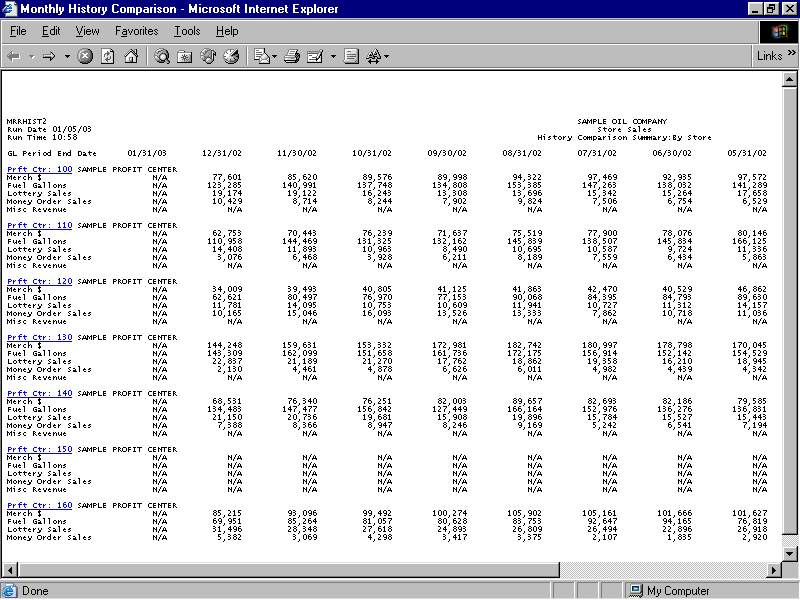
The following information prints on Monthly History Comparison child Summary reports:
Period End Date
Profit Center
Merchandise $
Fuel Gallons
Lottery Sales
Money order Sales
Miscellaneous Revenue
Lottery Sales
Totals
Average
The report columns are as follows:
GL Period End Date
The GL Period End Date columns contain sales data pertaining to each specified period.
Thirteen months are shown on the Monthly History Comparison report. The first month is the month selected as report criteria. Prior months are chosen by subtracting one month from the selected Period Ending date and then subtracting one month from each subsequent Period Ending Date.
The report sections are as follows:
Profit Center
The report displays the name and number of the profit center represented by the corresponding report data. Child profit centers appear as hyperlinks and are in numeric order on Child Summary reports. Clicking on a child profit center hyperlink will show detail information for the selected child profit center.
Merchandise $
The Merch $ section reports merchandise sales values for each Period Ending Date column. Column values are rounded to the nearest whole dollar.
Fuel Gallons
The Fuel Gallons section reports fuel gallon values for each Period Ending Date column. Column values are rounded to the nearest whole gallon.
Lottery Sales
The Lottery Sales section is only available to StoreTrak users. This section reports Lottery ticket sales and values are rounded to the nearest whole dollar. If there are no values to report, the section label will not print on the report.
Money Order Sales
The Money Order Sales section is only available to StoreTrak users. This section reports money order sales and values are rounded to the nearest whole dollar. If there are no values to report, the section label will not print on the report.
Miscellaneous Revenue
The Misc. Revenue section reports miscellaneous revenue. Values are rounded to the nearest whole dollar. If there are no miscellaneous revenue values to report, the section label will not print on the report.
The following formula is used to calculate the Misc. Revenue column values:
(Y – X)
X = the sum of debit values retrieved from the GL_JRNL_RS table for each period. Note: Debit values are retrieved and calculated by the system. They are not displayed on Monthly History Comparison reports.
Y = the sum of credit values retrieved from the GL_JRNL_RS table for each period. Note: Credit values are retrieved and calculated by the system. They are not displayed on Monthly History Comparison reports.
Total values are figured by summing the values of the date columns for each period.
Average values for each period are calculated by using the following formula:
X / Y
X = the Total value for the date column.
Y = the number of profit centers listed on the report.
Click on the child profit center’s hyperlink to view a Monthly History Comparison Child Detail report. Detail information for child profit centers is calculated in the same manner as it is for parent profit centers. See the Monthly History Comparison Detail report section for more information.
You may notice a slight rounding difference between totals on detail and summary reports. Click here to see why.