Missing Items reports allow users to view all items scanned at their assigned store(s) for a selected period which have no price book record. This information can be used to spot unauthorized items as well as items that are missing from the price book.
Reports are available for assigned profit centers.
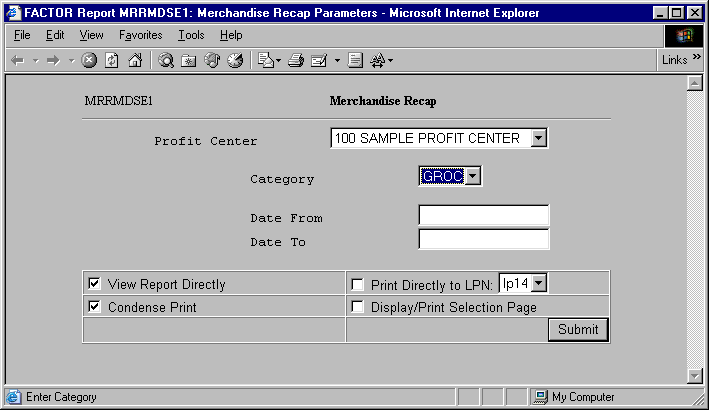
When you select Missing Items reports, the system displays the following report criteria screen:
The following selection criteria allow you to specify the period to report and the way the report is viewed.
Enter the starting date for the period you wish to view. You must make an entry in this field and it must be in mm/dd/yy format. For example:
01/10/99
Enter the ending date for the period you wish to view. You must make an entry in this field and the date must be greater than the Beginning Date. Use the mm/dd/yy format. For example:
01/10/99
Note: If the Ending Date is not greater than the Beginning Date, the system will display an error message.
You may specify how you want to view and/or print the report by choosing from the following selections:
· View Report Directly
· Condense Print
· Print Directly to LPN
· Display/Print Selection Page
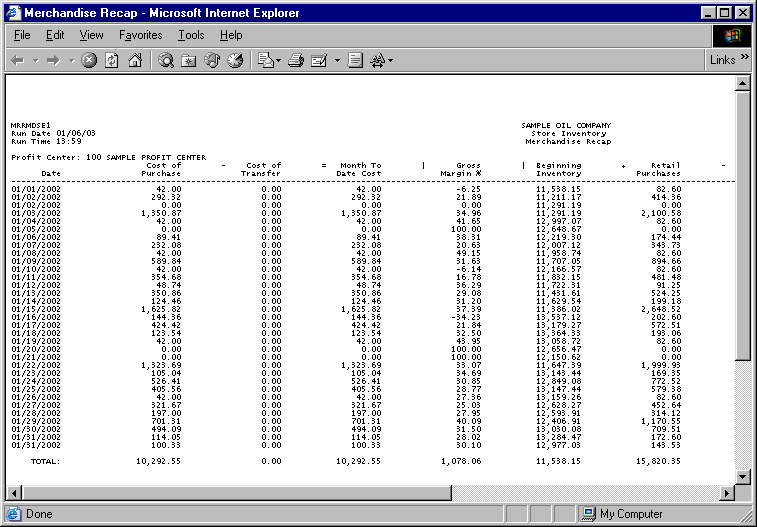
Note: Missing Items reports display information by store where items are not in the price book.
The following information is listed on Missing Items reports:
Vendor
Date
UPC Number
Store
Selling Price
Note: The IQ_SCAN_DATA_HIST table is used to retrieve price book data.
The report contains the following columns:
Vendor
The report displays the name and number of the vendor for which the corresponding missing item data pertains.
Date
The report displays a row for every date in the specified date range.
UPC Number
Missing Item data is sorted by UPC number. The report displays the UPC number for the item scanned on the corresponding date.
Store
Missing Items reports display the number of the store at which the missing item was scanned on the corresponding date.
Selling Price
The Selling Price column displays the selling price of the item scanned at the store. Values are rounded to two (2) places after the decimal.
You may notice a slight rounding difference between totals on detail and summary reports. Click here to see why.