Merchandise Recap reports provide a summary of purchases and sales for a selected date range. This information can be used to identify unusual trends and/or values that are outside acceptable limits.
Reports display summary information for assigned profit centers.
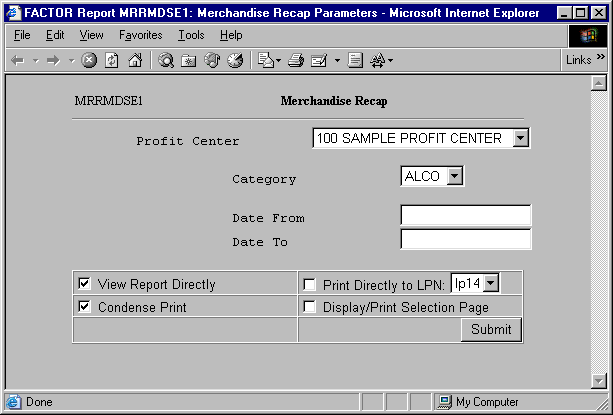
When you select Merchandise Recap Reports, the system displays the following report criteria screen:
The following selection criteria allow you to specify the period to report and the way the report is viewed.
Enter the category to be reported, or use the search procedure to view a drop-down list of categories that match the criteria you enter in the Category edit box, if any. You may then select the category by clicking the appropriate listing.
Enter the starting date for the period range. You must make an entry in this field. You may enter the date in mm/dd/yy or mm/dd/yyyy format. For example:
01/10/99or 01/10/1999
Enter the ending date for the period range. You must make an entry in this field and the date must be greater than the Beginning Date. You may enter the date in mm/dd/yy or mm/dd/yyyy format. For example:
02/10/99or 02/10/1999
Note: If the ending date is not greater than the starting date, or if the beginning and ending dates are not within the same GL period, the system will display an error message.
You may specify how you want to view and/or print the report by choosing from the following selections:
· View Report Directly
· Condense Print
· Print Directly to LPN
· Display/Print Selection Page
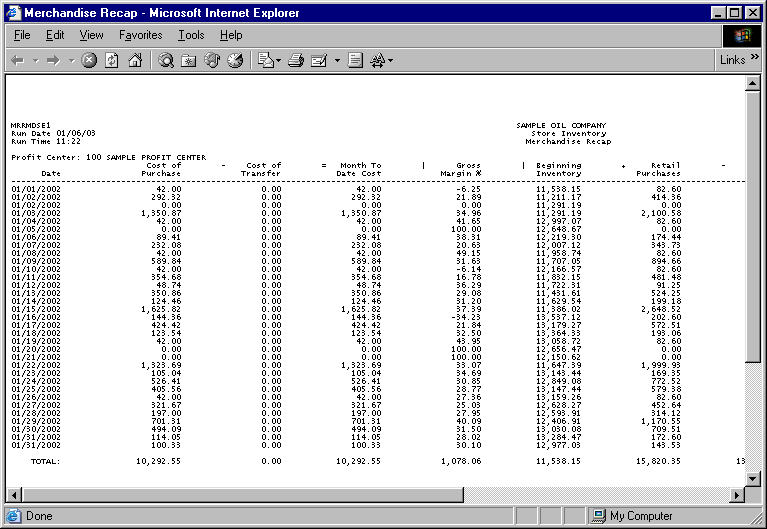
The following information is listed on Merchandise Recap reports:
Day
Cost of Purchase
Cost of Transfer
Month-to-Date Cost
Gross Margin %
Beginning Inventory
Retail Purchases
Retail Sales
Retail Bad Merchandise
Retail Transfers
Over & Short
Ending Inventory
Note: Table GF_RPT_PORT_GL is used to define the GL accounts for Over/Shorts and Bad Merchandise. Only Expense or Cost of Goods accounts are allowed in this table.
The report columns are as follows:
Day
The Day column starts with the beginning date value entered for the period as selection criteria and ends with the ending date entered.
Cost of Purchase
The Cost of Purchase column displays the cost of all retail sales purchases for the corresponding day.
Cost of Transfer
The Cost of Transfer column displays the cost of all retail sales transfers for the corresponding day.
Month-To-Date Cost
The Month-To-Date Cost column displays the total cost for the month from the beginning date through the ending date. Month-to-Date Cost column values are calculated by using the following formula:
(X – Y)
X = the sum of Cost of Purchase values.
Y = the sum of Cost of Transfer values.
Values are rounded to two (2) places after the decimal and may be positive numbers, negative numbers, or zero.
Gross Margin %
Gross Margin % values are calculated by using the following formula:
(X – Y) / X
X = the sum of the Retail Purchases column value and the Retail Transfers column value for the specified day.
Y = the sum of the Cost of Purchases column value and the Cost of Transfers column value for the day.
Values are rounded to two (2) places after the decimal and may be positive numbers, negative numbers, or zero.
Beginning Inventory
The Beginning Inventory column displays the beginning inventory value for the specified day.
Retail Purchases
The Retail Purchases column displays the retail value of all sales purchases for the specified day.
Retail Sales
The Retail Sales column displays the total of all retail sales for the specified day.
Retail Bad Merchandise
The Retail Bad Merchandise column values are calculated by using the following formula:
(X – Y)
X = the sum of debit values for the specified day. Note: Debit values are calculated by the system and do not appear on Merchandise Recap reports.
Y = the sum of credit amounts for the specified day. Note: Credit values are calculated by the system and do not appear on Merchandise Recap reports.
Retail Transfers
The Retail Transfers column displays the value of all retail sales transfers for the specified day.
Over & Short
Over & Short column values are calculated by using the following formula:
(Y – X)
X = the sum of all debit amounts for the specified day. Note: Debit values are calculated by the system and do not appear on Merchandise Recap reports.
Y = the sum of all credit amounts for the day. Note: Credit values are calculated by the system and do not appear on Merchandise Recap reports.
Please note the formulas for the Retail Bad Merchandise and Over & Short columns are not the same. The Over & Short formula is (Y – X) while the Retail Bad Merchandise formula is (X – Y).
Ending Inventory
Ending Inventory values are calculated for each day by using the following formula:
(U + V – W – X + Y + Z)
U = the Beginning Inventory column value plus
V = the Retail Purchases column value minus
W = the Retail Sales column value minus
X = the Retail Bad Merchandise column value plus or minus
Y = the Retail Transfers column value plus or minus
Z = the Over & Short column value.
You may notice a slight rounding difference between totals on detail and summary reports. Click here to see why.