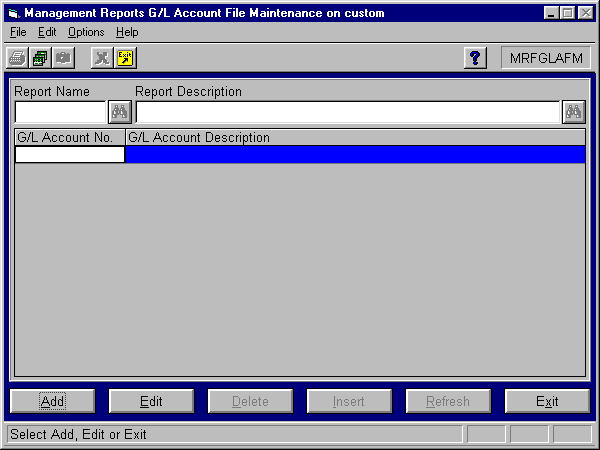
The GL Account File Maintenance program allows you to specify additional GL accounts that represent sales that are to be listed on certain reports available through DataTrak. The program also allows you to edit and/or delete the GL account information available on specific reports. This functionality is available for the following reports only:
Daily Sales Comparison
History Comparison
Merchandise Recap
Period Comparison
Four Week Comparison
These accounts will appear under the "Miscellaneous" heading on the report.
Login to ExecuTrak for Windows. Select Additional Modules >> DataTrak >> File Maintenance >> DataTrak GL Acct Maint. The system displays the following screen:
(This program was formerly known as Management Reports GL Account File Maintenance.)
Select the Add button to add new GL account information, or select the Edit button to change data for an existing GL account. When you finish entering data, click the Insert/Update button to save the record.
Specify the report for which you want to add/edit/delete GL information. You may select reports by name or by description.

This field is required. Use this field to enter the name of the report for which you want to add and/or edit GL account information or use the search procedure to display a list of available reports. Entering a report name automatically populates the Report Description field.
Click the  (Search) button to display
a drop-down list of reports that match the criteria you enter in the Report
Name edit box, if any. If you enter no criteria and initiate a search,
the system displays all available reports.
(Search) button to display
a drop-down list of reports that match the criteria you enter in the Report
Name edit box, if any. If you enter no criteria and initiate a search,
the system displays all available reports.
This field automatically displays the report description when you enter a valid Report Name. If you do not know the Report Name, you can search by description. Enter the report description or use the search procedure to display a list of available descriptions.
Note: The Report Name/Description combination cannot be changed in Edit mode.
Report Description Search Button
Click the (Search) button to display
a drop-down list of report descriptions that match the criteria you enter
in the Report Description edit box, if any. If you enter no criteria
and initiate a search, the system displays all available report descriptions.
Select the GL account. You may select GL accounts by number or description.

This field is required. Enter the GL account number or use the search procedure to display a list of available account numbers. Entering an account number automatically populates the GL Account Description field.
Click the (Search) button to display
a drop-down list of GL account numbers that match the criteria you enter
in the GL Account Number edit box, if any. If you enter no criteria
and initiate a search, the system displays all available GL accounts.
Note: If you attempt to add a duplicate GL Account Number for the report, the system displays the “GL Account Number already exists for this report.” error message.
This field automatically displays the GL description when you enter a valid GL Account Number. If you do not know the GL Account Number, you can search by description. Enter the GL Account Description or use the search procedure to display a list of available descriptions.
Click the (Search) button to display
a drop-down list of GL account descriptions that match the criteria you
enter in the GL Account Description edit box, if any. If you enter
no criteria and initiate a search, the system displays all available GL
descriptions.
Note: GL Account/Description values may not be changed in Edit mode. Grid rows can be deleted but not edited.
This field is only visible when the Merchandise Recap report is selected. There are only two options available for input in this column.
· Select BMDS for Retail Bad Merchandise accounts.
· Select OS for Over/Short accounts.
Enter the Account Type or use the search procedure to display the list of available types.
Once you have added and/or edited the GL account information, click the Insert/Update button to save the information.
The following buttons are available on the GL Account File Maintenance screen:
Click the Add button to add GL information to the system. This action changes the Insert/Update button to “Insert” and disables the Edit, Delete, and Refresh buttons. In addition, the Cancel/Exit button displays “Cancel” and the Add button remains disabled until you select the Cancel or Insert button.
Click the Edit button to change information for an existing GL account record. This action changes the Insert/Update button to “Update” and disables the Add, Delete, and Refresh buttons. In addition, the Cancel/Exit button caption will display “Cancel" and the Edit button remains disabled until you select the Cancel or Insert button.
Note: Grid records cannot be edited. They can only be deleted.
Click the Delete button to remove a record from the system. The Delete button will be enabled only after you select and display a valid record. If you make a change to the record, the Delete button will be disabled. If you delete a record, the button remains disabled until you select and display another record.
Note: You may delete any grid row at any time. If all grid rows are deleted from a report record, the record is removed from the GF_RPT_PORT_GL table.
This button changes its caption and function depending on the form’s status.
The Update button is only available if the Edit button was selected during the initial stages of the data entry process on this screen. Clicking the button begins the validation and updating process. If the validation is successful, the changes that were made on the screen will be stored in the database; otherwise an error message will be displayed. This button is enabled only when sufficient changes have been made to the data that was displayed.
The Insert button is only available if the Add button was selected during the initial stages of the data entry process on this screen. Clicking this button begins the validation and insertion process. If the validation is successful, the data entered on the screen will be stored in the database; otherwise an error message will be displayed. This button is enabled only when sufficient data has been entered to all required data fields.
The Refresh button will only be enabled when the edit procedure has been initiated, data has been changed, and the Update button has not yet been clicked. Clicking the Refresh button will execute a procedure to re-display the selected data as it was before the latest changes (those not applied to the server database) were made. After the Update button is clicked, the Refresh button will be disabled again.
This button changes its caption and function depending on the form’s status. If both the Add and Edit buttons are enabled, the caption of this button will read “Exit”, and when clicked, will immediately close the form. If the Add and Edit buttons are disabled, the caption of this button will read “Cancel”, and when clicked, will clear the data from all controls and return the form to its initialized state with the Add and Edit buttons enabled, and the caption on the Cancel/Exit button displaying “Exit”. If the Cancel button is clicked and data has been changed on the current form, a warning message box is displayed stating that any data entered or changed will be lost.