The Days Sales in Inventory report allows you to compare retail inventory to average daily sales and estimate the number of days worth of inventory, by category, that a C-store has on hand. Having this information readily available can help you identify stores with excessive inventories.
By default, the report resides in the Inventory Reports document group. When you select Days Sales In Inventory reports, the system firsts prompts you to select a database if more than one database exists on your server. After you select a database, DataTrak displays the selection criteria screen. If only one database exists on your server, the system displays the selection criteria screen when you click the report name.
Selection criteria for the report include the following:
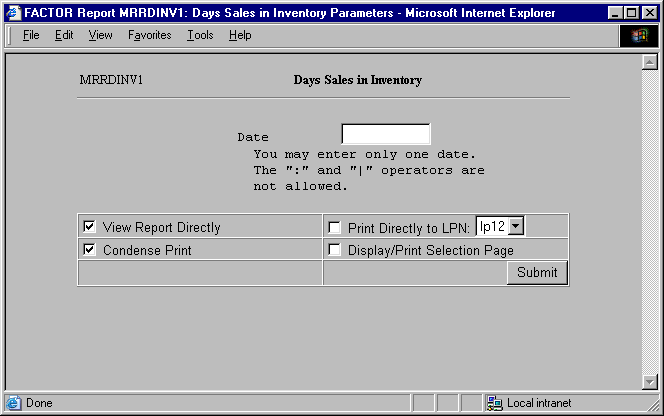
Specify the date for which you want to view inventory information. The date is a required criterion. Enter the date in one of the standard date formats.
You may specify how you want to view and/or print the report by choosing from the following selections:
View Report Directly: Select this checkbox to view the report on the screen. The report will display in a browser window.
Condense Print: This option is necessary when you print the report on 8.5" x 11" paper to a system printer. Otherwise the width of the report will exceed the paper width.
Print Directly to LPN: Select this option to automatically send the report to a system printer. Note: you can print the report to your windows printer by viewing the report on the screen and then selecting File and Print from the browser window.
Display/Print Selection Page: Select this option to print your report selection criteria as the first page of the report.
The profit centers for which you can view this report are determined by the assigned profit center for your user account. For example, you are assigned the top most profit center in the DataTrak consolidation path. The report will allow you to "drill down" and view data for lower level profit centers. On the other hand, if you are assigned a profit center on the lowest level of the DataTrak consolidation path, then you will be able to view data for only that profit center.
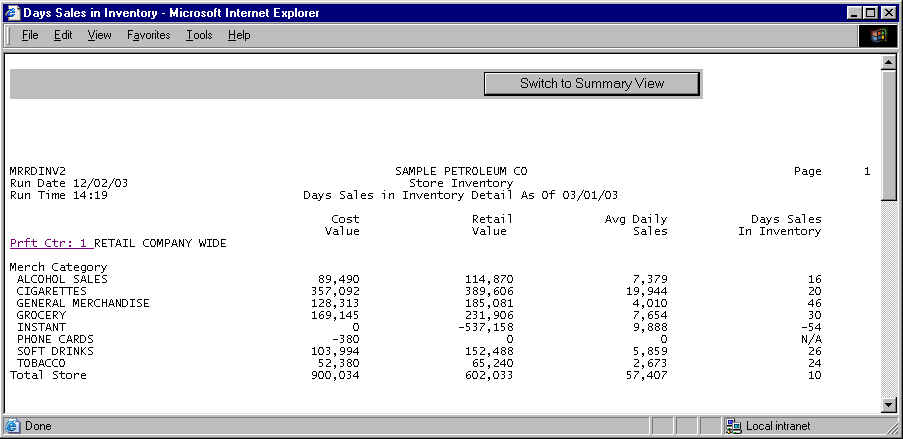
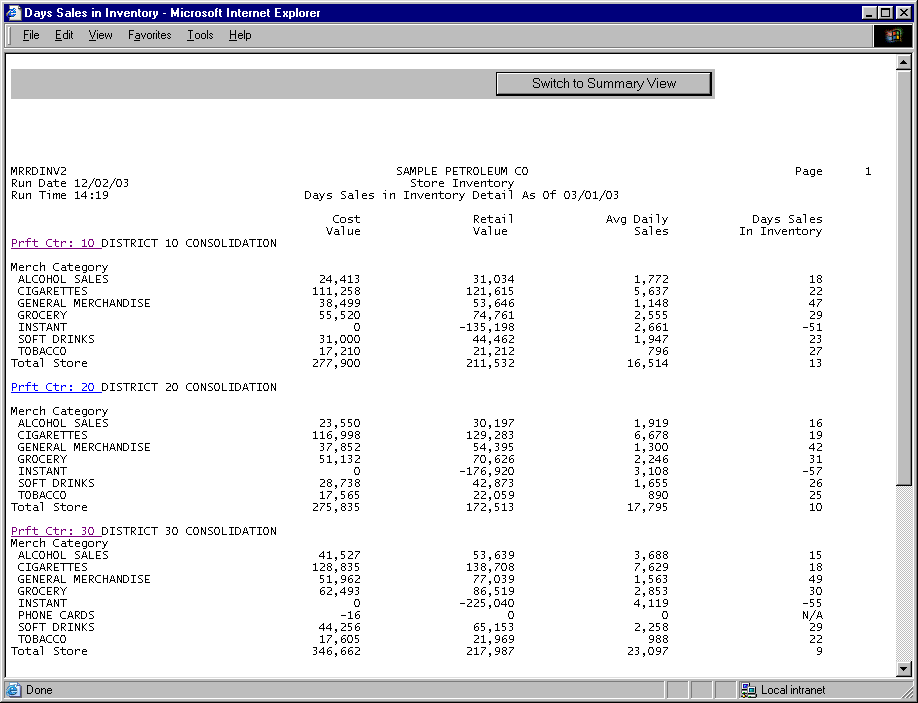
To drill down and see data for additional profit centers in the path, simply click a link. Review the following sample reports:
Top Most Level in Consolidation Path
Next Level in Consolidation Path
Next Level in Consolidation Path (All Stores within District Consolidation Profit Center)
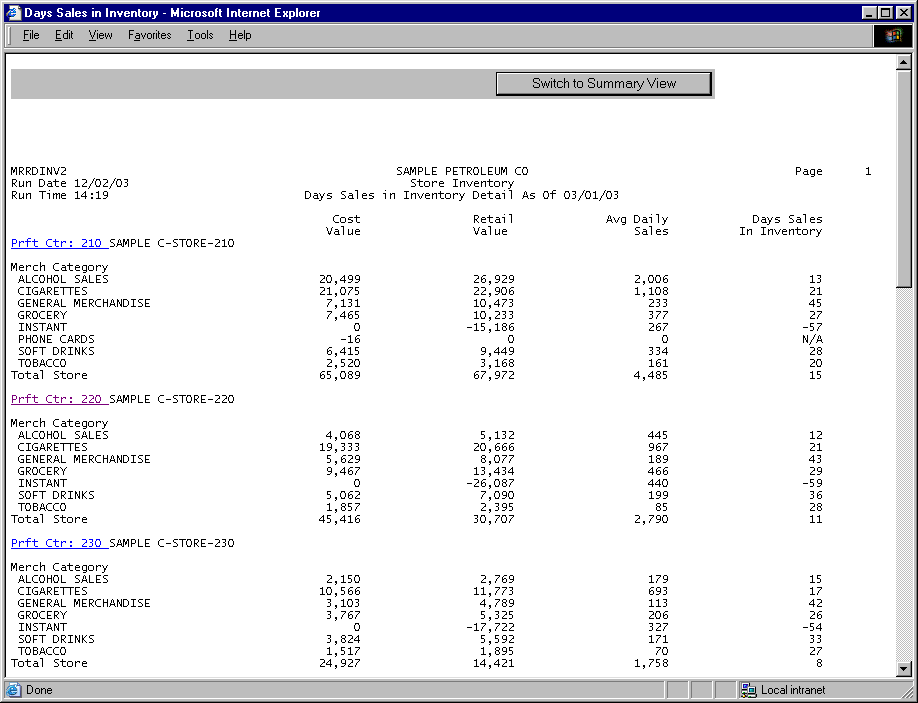
Next Level in Consolidation Path (Single Store within District-Lowest Level in the Consolidation Path)
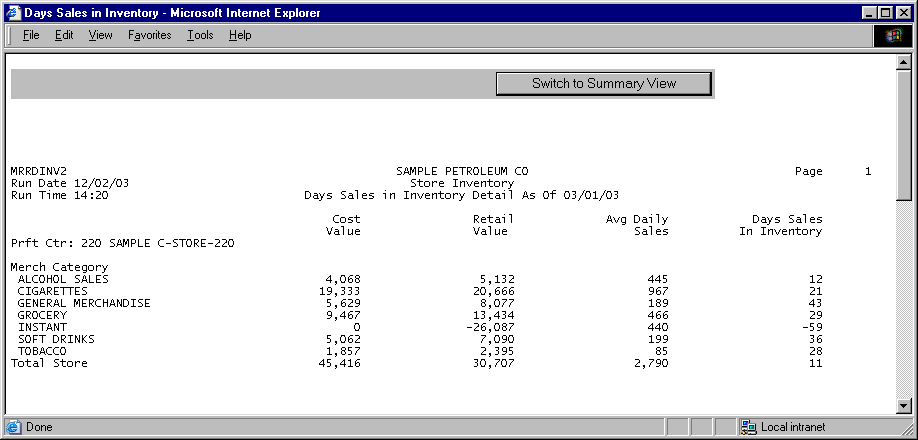
The report organizes data by profit center and category, respectively. The report lists the following information for each listed category:
Cost Value
Retail Value
Avg Daily Sales
Days Sales in Inventory
Profit Center
Merchandise Category
Totals
Cost Value
To determine a category's cost value, the report adds any purchase for the period to the beginning cost value for the period. Next, the report subtracts sales for the period. This establishes a total cost value for category as of the date you entered in the report criteria.
Values are rounded to the nearest whole dollar.
Retail Value
To determine a category's retail value, the report adds the retail value of purchases for the period to the beginning retail value for the period. Next, the report subtracts the retail value of sales for the period. This establishes a total retail value for the category as of the date you entered in the report criteria. Note: Values are rounded to the nearest whole dollar.
Average Daily Sales
To determine the Average Daily Sales, the report sums the previous four weeks of sales for the category and then divides by 28. Note the report rounds the average daily sales to the nearest whole dollar.
Days Sales In Inventory
To determine the Days Sales in Inventory amount for the category, the report divides the retail value for the category by the average daily sales.
The following sections are listed on the report:
Totals:
The report presents Cost Value, Retail Value, and Average Daily Sales subtotals for each store and totals these values for all stores.
You may notice a slight rounding difference between totals on detail and summary reports. Click here to see why.