Login to DataTrak with your username and password.
Click the Maintenance
option on the DataTrak menu. The browser displays the following DataTrak
Maintenance screen.
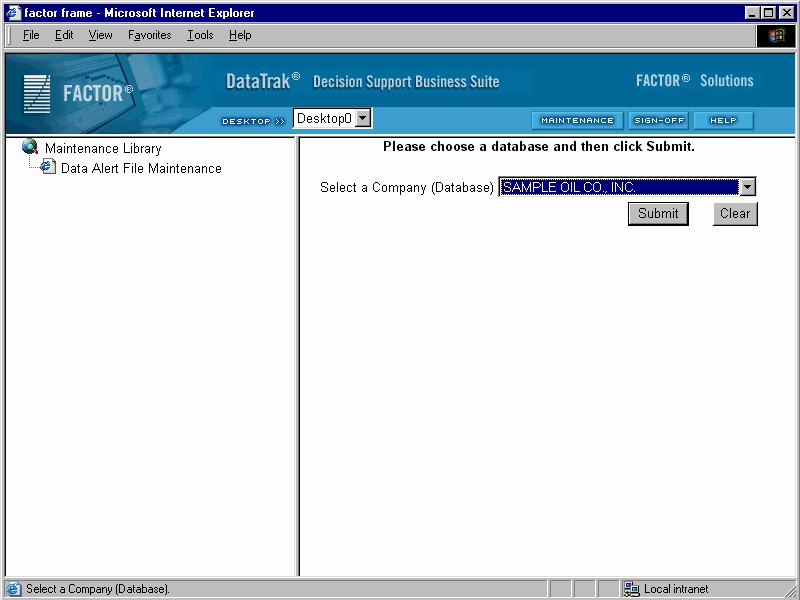
Click the Data Alert File Maintenance in the Maintenance Library. The right browser pane displays the maintenance form.
Select the database from the database dropdown list and then click the Submit button.
The system then displays your username and the Alert selection field.
Select the alert from the Alert dropdown list and then click the Submit button. Note: Data alerts are predefined by Factor. You cannot create data alerts.
After you select the alert, click the Submit button. The system displays the Schedule and Tolerance fields.
Click the down arrow next to the Schedule field to select from a predefined list of schedules. The schedule will specify the time and/or frequency with which the identified alert will be sent. Each alert can be assigned a different schedule.
The tolerance for
each alert defaults to zero. The tolerance identifies the amount of deviation
required for triggering an alert. For example, the Unaudited Cash Over/Short
alert allows you to enter a tolerance for cash over and a tolerance for
cash short. If you set the tolerance for each of these to 5.00, then the
system will send an alert whenever the cash over or cash short exceeds
5.00. If the unaudited cash over/short for a report equals 3.35, then
no alert is sent since the amount is less than 5.00.
After you enter the tolerance for the alert, click the Submit button
to save the record.
After the record is saved, the right pane returns to the Database Selection field and allows you to define another alert.