User Accounts
Each user who is to access DataTrak will need his or her own
username and password. The username will identify the permissions for
the user account. These permissions include the documents that the user
can view as well as the company databases and profit centers for which
the user can view documents. The
password ensures that only authorized users access DataTrak. Passwords
should be confidential and known only to the user and the DataTrak administrator.
Things to Keep in Mind
The user account also identifies a user's supervisor (parent
user). For this reason, it is necessary to create user accounts from the
top of the organizational chart downward, starting with the president
and/or CEO, upper level managers, district managers, regional managers,
store managers, etc, respectively. This is necessary to ensure that a
parent user ID is available for selection when creating child user IDs.
Consider the following example:
Bill Smith is a store manager. John Jones is a district manager
and Bill's supervisor. If you create Bill's user account before you create
John's user account, then you will not be able to specify John as Bill's
"Parent User". If you create John's account first, then his
username will be available for selection as Bill's "Parent User".
Use the following procedure to create a user account:
Login to DataTrak
as "admin".
Click the Maintenance
button on the menu. The system will display the maintenance screen.
Click the User Account
Maintenance Folder in the Maintenance Library tree (located in the left
browser pane.)
The right browser
pane displays the User Group Maintenance form. Fields on this form include
the following:
Username:
Specify the username. Usernames can be up to eight alphanumeric characters
in length and must be unique. One common method for creating user names
is first initial last name. For example, "jsmith".
Password:
Specify the password for the username. The password can be between 8 and
20 alphanumeric characters in length. When you type the password, the
screen form masks each character with an "*".
Retype Password:
Reenter the password to verify that you made no typographical errors.
First Name:
Enter the user's first name, up to 30 alphanumeric characters.
Last Name:
Enter the user's last name, up to 30 alphanumeric characters.
Email: Enter
the user's e-mail address, up to 100 alphanumeric characters.
Parent
User: Select the user ID for
this account's supervisor/manager. (Note, when creating a user account
for the highest level on the organization chart, select "-----"
as the parent user name.
User Group: Select the user group for this user account.
Click the Company/Profit
Center Maintenance button, and the system displays the next User Account
Maintenance form.
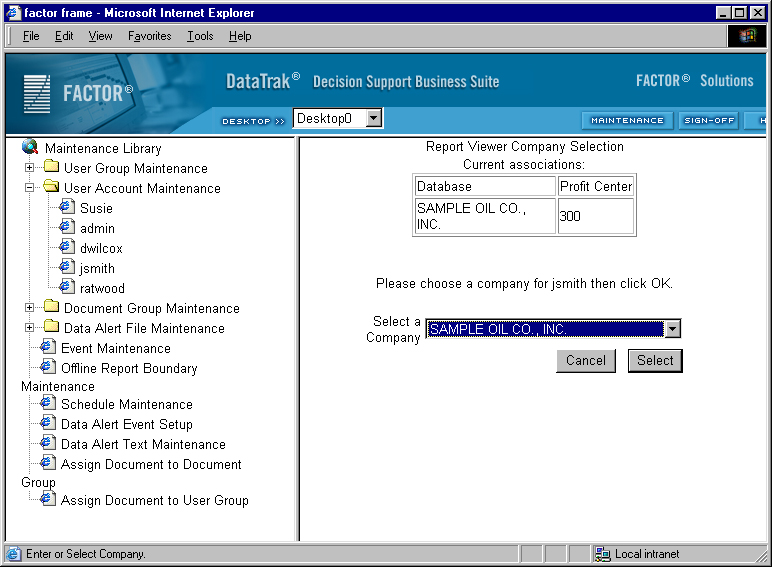
This form lets you
specify the company databases to which a user has access. The top part
of the form displays currently assigned company databases. To add a new
company, select the company name from the dropdown list and then click
the Select button. Note: Each user can
be granted access to multiple databases.
After you select
a database, you will then need to specify the user's profit center assignment
for that database. Select the profit center from the dropdown list and
then click the select button. The profit center assignment establishes
a user's base profit center in the profit
center consolidation path. The username will be able to view report
information for only this profit center and profit centers that are located
below it in the profit center path.
After you assign
the profit center, the system returns you to the database assignment form
and lets you assign another database/profit center to the account.
Editing
an Existing User
Login to DataTrak
as "admin".
Click the Maintenance
button on the menu. The system will display the maintenance screen.
Click the User Account
Maintenance folder in the Maintenance Library tree (located in the left
browser pane) To expand it and display a list of existing user accounts.
In the maintenance
tree, click the name of the user account that you need to modify.
The right browser
pane displays the record in the maintenance form. Make any changes to
the record and click the Submit button to save the changes. (You can click
the "Clear" button to reset the form to it's original state,
provided you have not yet clicked the Submit button.)