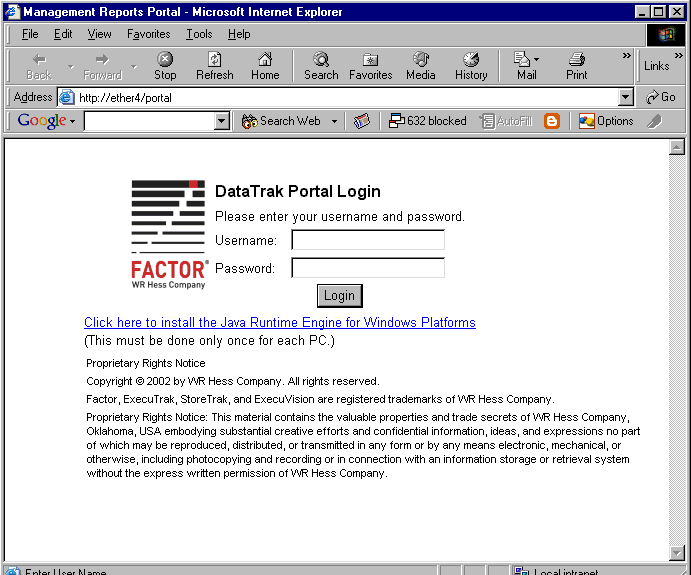
You will use Windows Explorer to login to DataTrak. When you enter the URL for DataTrak or select the Favorites shortcut, the system displays the following login screen:
Enter the Username of "admin" and the administrative password provided to you by Factor.
Click the Login button.
The system then displays
the DataTrak window.
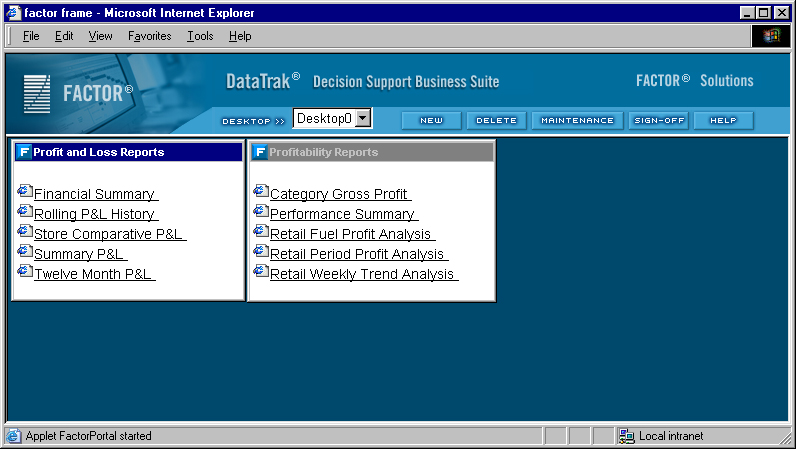
This window is divided into three sections:
Document Tree
Desktop
Menu
The Document Tree is located in the left browser pane. This tree lists all document groups and documents for the administrative account. You can drag document groups from the document tree and drop them in the desktop area.
The desktop area represents your work area and lets you select a document you want to view. To view a document, click the document link.
The menu is located in the top of the browser window above the desktop. Menu options for the administrative account include the following:
New: Click the New menu to create a new desktop. The administrator can create new, customized desktops for the administrative accounts as well as the primary desktop for user accounts.
Edit: Click the Edit menu to edit an existing desktop for the administrative account or user account.
Desktop: Click the Desktop menu to return to the primary desktop.
Desktop Drop Down List: The Desktop drop down list displays all desktops that exist for the administrative account. To display a different desktop, select the desktop from the list.
Maintenance: Click the maintenance menu to perform DataTrak maintenance functions.
Signoff: Click the signoff menu to exit DataTrak and return to the login screen.
Help: Click the Help button to access the administrative help system.