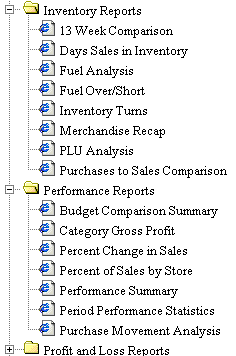
After you create document groups, you can then assign documents to those groups. This assignment results in a document group/document structure that looks something like this:
To continue, individual user accounts are assigned to a user group. In turn, documents are assigned to specific user groups.
This makes it possible for the DataTrak administrator to quickly and easily control the document groups AND documents that are displayed for specific user groups. For example, both the Executive and Store Manager user groups are granted access to reports in the Sales Report Folders. The Executive group is assigned all documents in the Sales Report document group. The Store Manager group, however, is granted access to only the Daily Sales Comparison report.
When someone from the Executive group signs on to DataTrak and views the contents of the Sales Report folder, all sales report documents are displayed. When someone from the Store Manager group logs on to DataTrak and views the contents of the Sales Report folder, only the Daily Sales Comparison report is displayed.
Follow these steps to assign a document to a user group:
Login to DataTrak as "admin".
Select Maintenance from the DataTrak menu, and the system displays the DataTrak Maintenance screen. The left pane on this screen displays the Maintenance Library tree. The right pane displays common DataTrak tasks.
Click Assign Document to User Group in the maintenance library.
The right pane displays
the maintenance form.
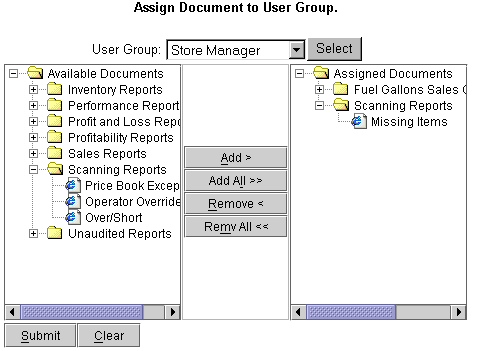
Select the user group
from the dropdown list and then click the  button.
The left side of the form displays all documents and/or groups that are not currently assigned to the displayed user group. The right side of the form displays those documents that have been assigned to the user group.
To assign a single
document, open
the document group that contains the document and then click the  button. The system moves the item from the left window and
displays it in the right window.
button. The system moves the item from the left window and
displays it in the right window.
Note: You can assign all un-assigned documents by clicking the  button.
When you finish assigning
documents to the user group, click the  button to save the
additions.
button to save the
additions.
Use the following procedure to remove a document assignment from a user group:
Login to DataTrak as "admin".
Select Maintenance from the DataTrak menu, and the system displays the DataTrak maintenance screen. The left pane on this screen displays the Maintenance Library tree. The right pane displays common DataTrak tasks.
Click Assign Document to User Group in the maintenance library.
The right pane displays
the maintenance form. Select the user group from the dropdown list and
then click the button.
The left side of the form displays all documents and/or groups that are not currently assigned to the user group. The right side of the form displays those documents that have been assigned to the user group.
In the left pane, open the document group that contains the document you want to remove.
Click the document
to highlight it, and then click the  button.
Note: You can remove all documents by clicking the  button.
When you finish making
changes, click the button to save the changes.