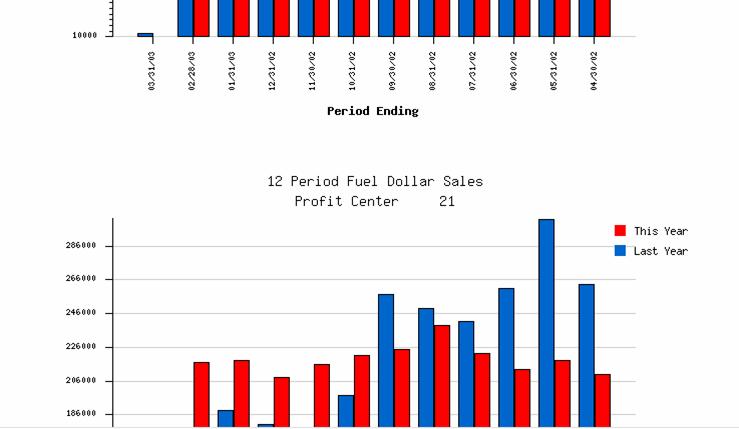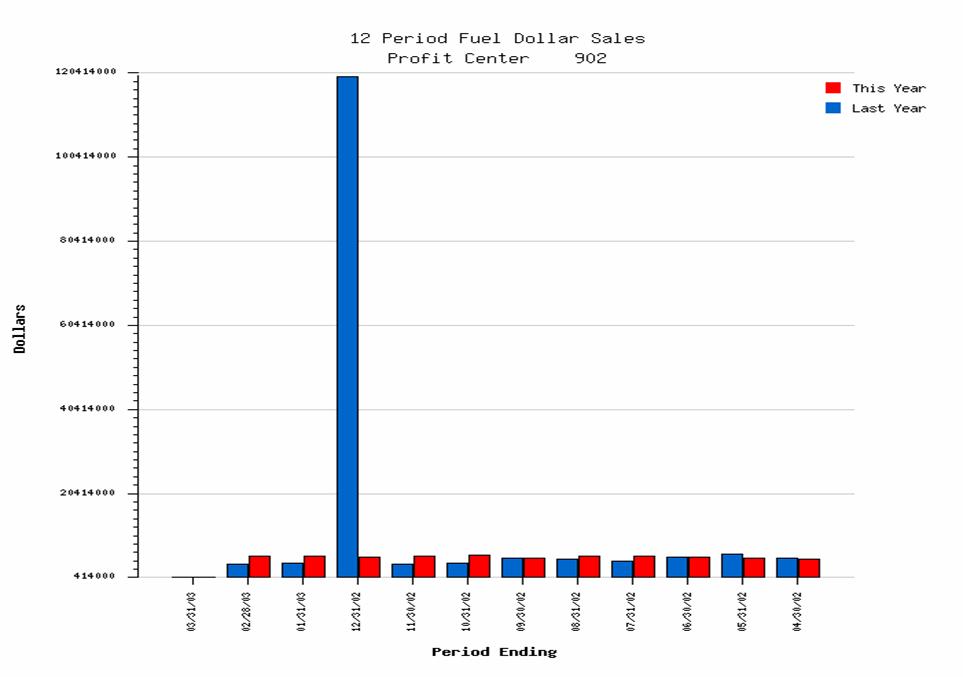
12 Period Fuel Dollar Sales reports are graphical reports that allow you to visually compare fuel sales dollars for up to twelve current/prior periods. Graphs display total fuel sales dollars for each period of the current year alongside the sales dollars for the corresponding periods from the previous year.
Report graphs are available for both parent and child profit centers.
Note: Please consider the following in regards to 12 Period Fuel Dollar Sales graphical reports:
Graphs are based upon the last recorded processed date for each child profit center. Ensure all shifts for the day are entered and processed before running the Consolidate Sales Data program to build the retail sales data warehouse.
The values on this report may be inaccurate if the processed through date for profit centers falls outside the current GL period.
When you select the 12 Period Fuel Dollar Sales reports, the system displays the following ExecuGraph:
The graph contains the following information:
Profit Center
Period Ending Date
Fuel Sales Dollars
This Year
Last Year
If there is no data to report for a period and/or year, the graph displays no bar, indicating zero.
12 Period Fuel Dollar Sales report graphics display the name and number of the profit center represented by the data.
The graph displays the period ending dates along the horizontal axis, beneath each date’s corresponding bar on the graph.
The graph displays the fuel sales dollars along the vertical axis. These values help evaluate the dollar amount of fuel sold at the profit center during the specified period and year.
Note: The vertical axis will display up to 48 values. However, the actual number of values will vary. Only the number of values necessary to include low and high values will be displayed.
Blue bars represent current year fuel sales dollars, and red bars represent the previous year’s fuel sales dollars.
If a profit center has child profit centers, you can click anywhere on the parent profit center’s graph to view graphical reports for each child profit center.
Child reports are graphed in the same manner as the parent profit center and are displayed vertically. Use the scroll bar to view all child profit center graphs.